


What Are Email Sending/Delivery Methods?
Email sending methods determine how and when your campaigns reach your audience. HighLevel provides four delivery options: Send Now, Schedule, Batch Schedule, and RSS Schedule. Each method helps businesses meet specific marketing needs, from urgent announcements to automated blog updates.
Key Benefits of Different Email Sending Methods
- Send Now: Immediate delivery for time-sensitive campaigns.
- Schedule: Allows planning campaigns ahead for specific dates/times.
- Batch Schedule: Improves deliverability by sending emails in smaller groups.
- RSS Schedule: Automates sending updates from blogs, feeds, or content streams.
Send Now
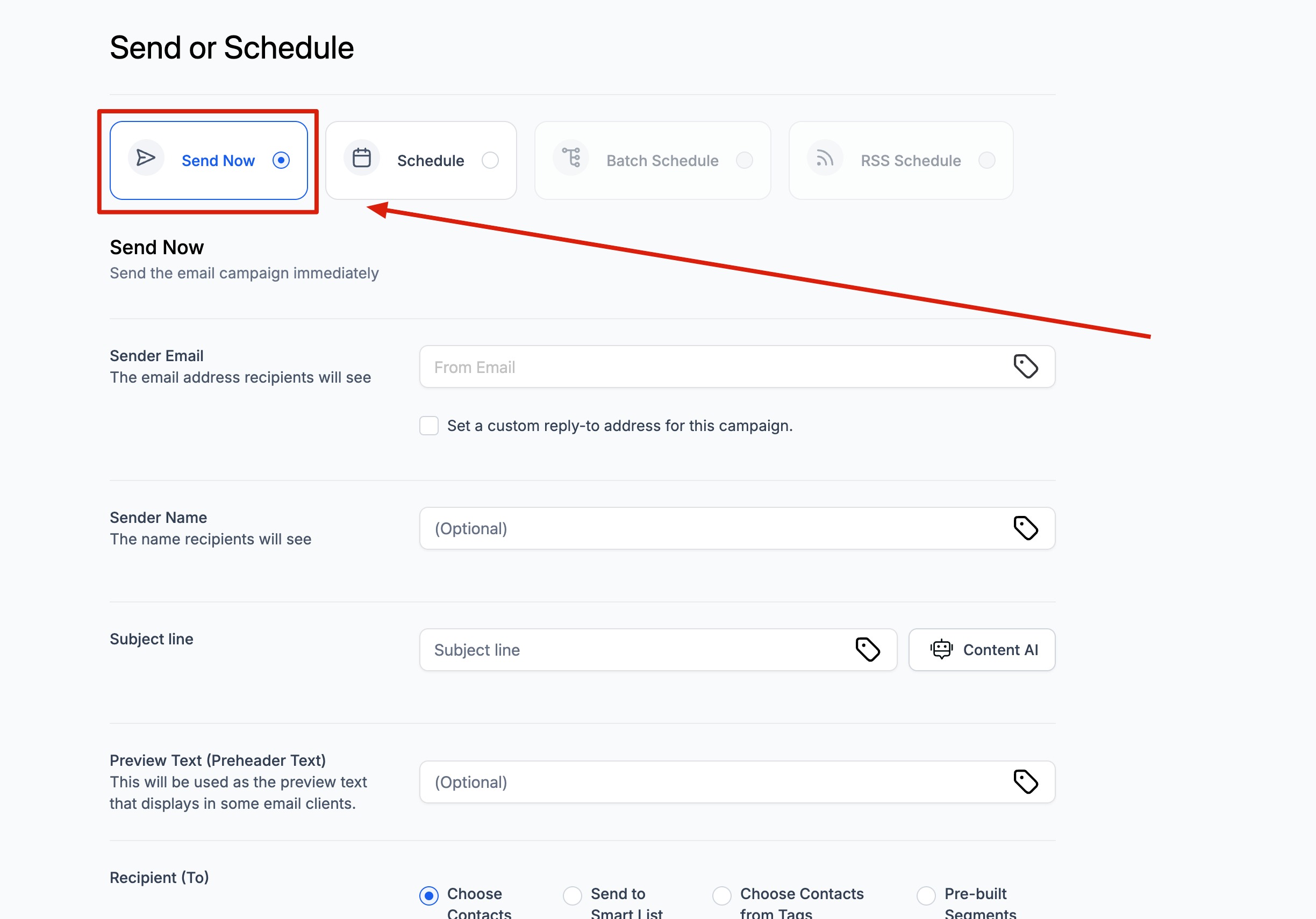
The Send Now option immediately sends your campaign to the selected recipients according to their location time zone. This method is best for urgent communications such as flash sales or important announcements.
When to use Send Now:
-
Urgent news or offers.
-
Last-minute campaign needs.
-
Immediate product updates.
Setup Steps:
-
Choose Send Now from the delivery options.
-
Enter Sender Email and optional Sender Name.
-
Write a Subject Line and optional Preview Text.
-
Select recipients (Smart List, Tags, Segments, or Contacts).
-
Click Send to deliver instantly.
Schedule
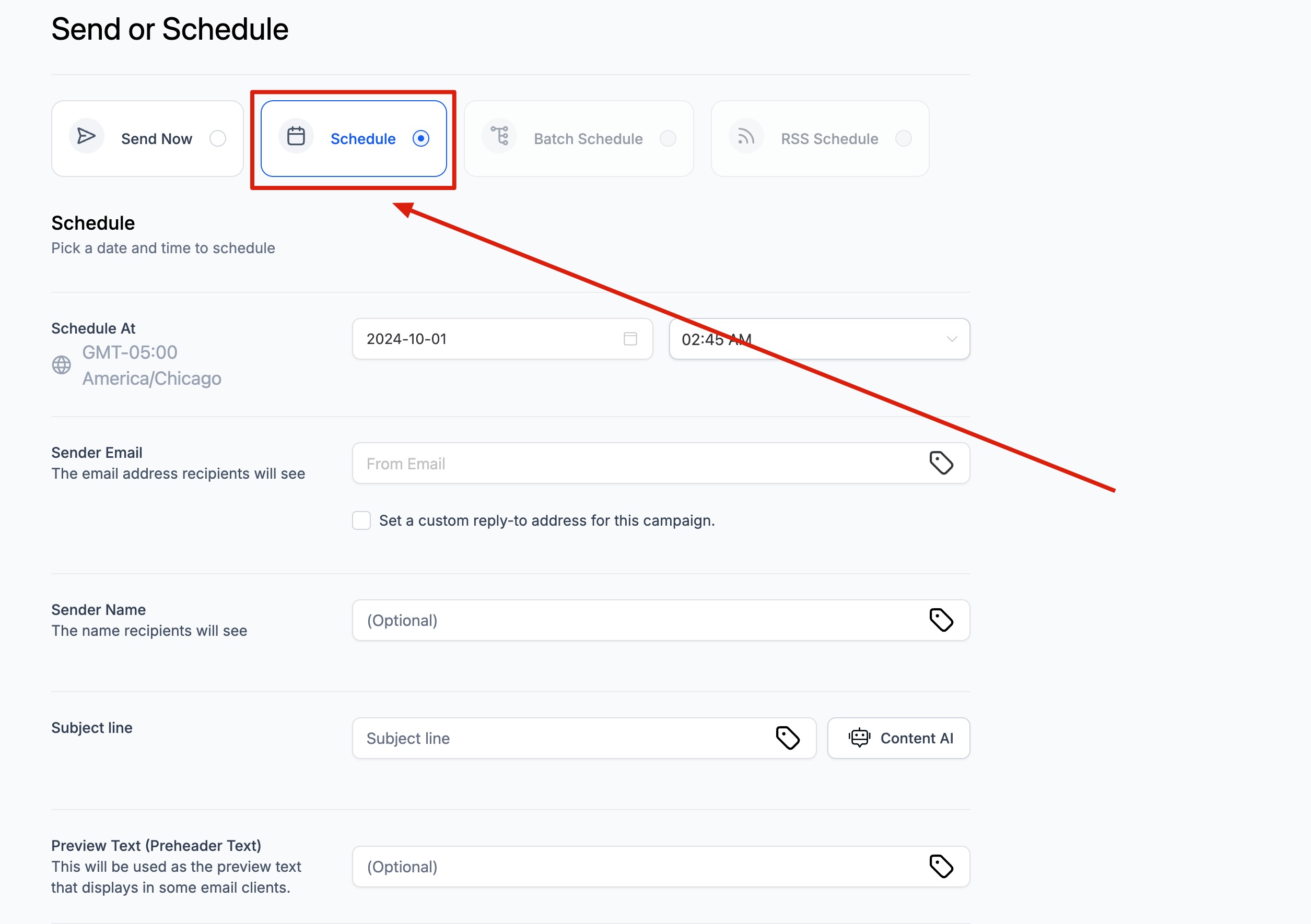
The Schedule option lets you select a specific date and time for delivery. This ensures your campaign reaches your audience when they are most likely to engage.
When to use Schedule:
-
Event reminders.
-
Seasonal promotions.
-
Planned marketing campaigns.
Setup Steps:
-
Select Schedule.
-
Pick a date and time (system uses location time zone).
-
Configure sender details, subject line, and preview text.
-
Select recipients.
-
Confirm scheduling.
Batch Schedule
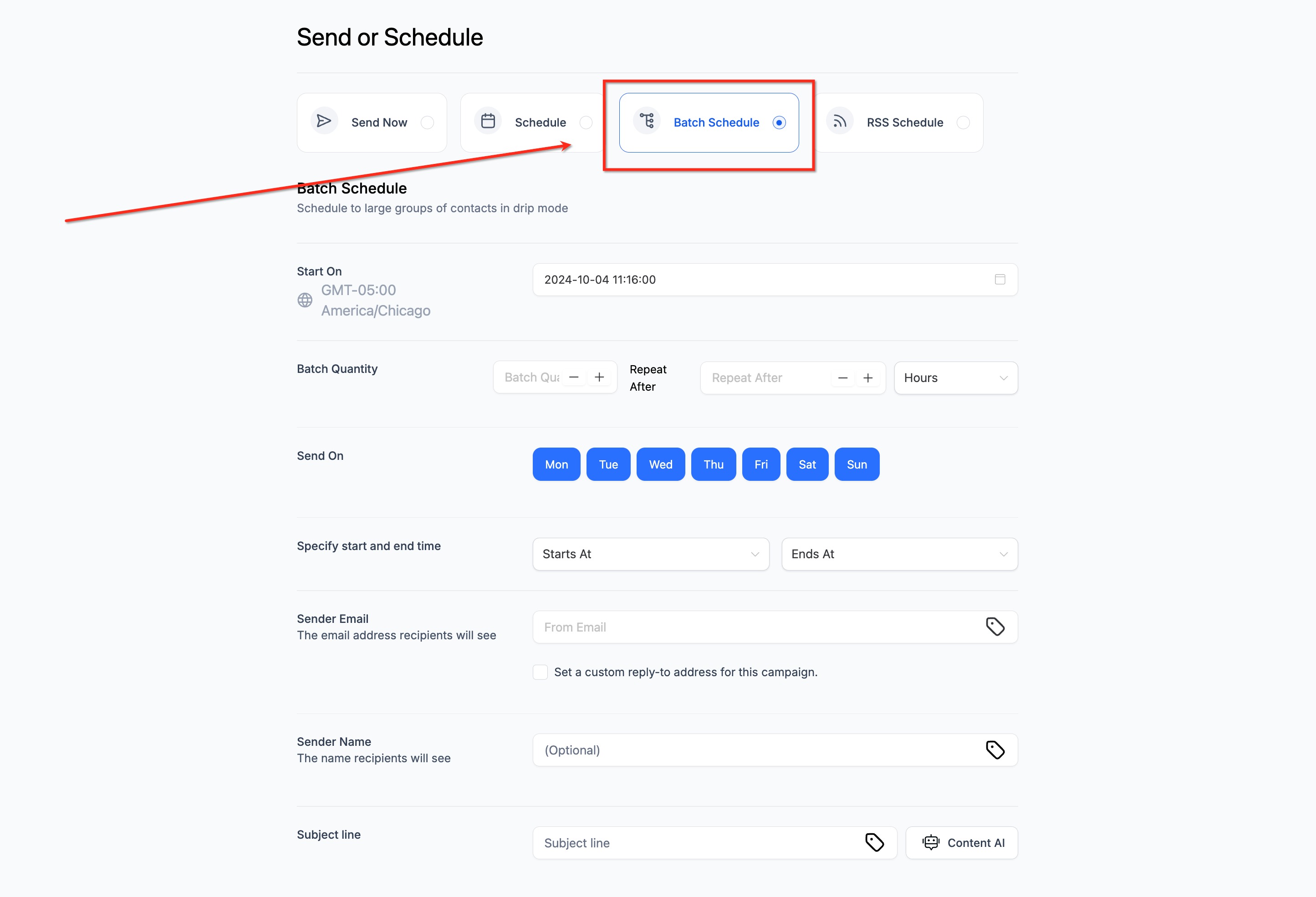
The Batch Schedule option allows you to send large campaigns in smaller groups (batches). This reduces the risk of deliverability issues and spreads out sending over a chosen timeframe.
Note: Batch Schedule Validation

1. If End time is earlier than Start time, an inline error appears under End time: End time can't be before start time.

2. If an End time is selected before Start time, an inline prompt appears under Start time: Please enter a valid start time.

3. Send and Schedule remain disabled until you fix the errors.

4. Set Batch Quantity and Repeat after.

5. Choose a supported interval for repeating the batch.

Note: The seconds option is not available.

Draft behavior: If a previously saved draft selected seconds, that value clears automatically to avoid scheduling errors.

6. Editing Start time confirms with a single OK button.

7. Midnight (12:00 AM) boundaries are handled without false errors.
When to use Batch Schedule:
-
Large recipient lists (thousands of contacts).
-
Preventing server throttling.
-
Ensuring consistent deliverability.
Example: If you have 1000 contacts and set batch quantity to 100, emails are delivered in 10 rounds.
Setup Steps:
-
Select Batch Schedule.
-
Define Start Date/Time.
-
Set Batch Quantity and Repeat Interval (hours or days).
-
Configure sender details, subject, and recipients.
-
Save and confirm.
RSS Schedule
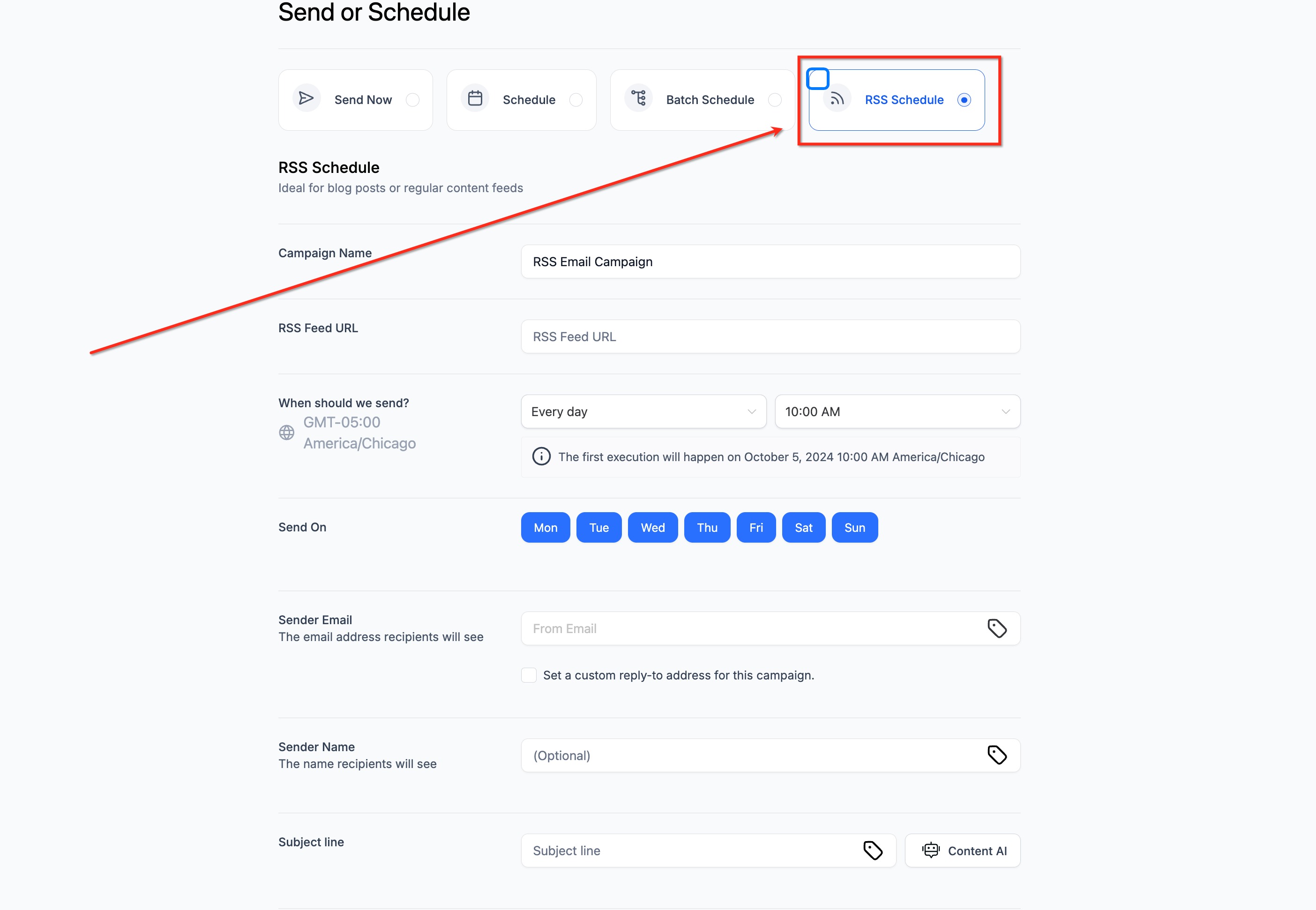
The RSS Schedule option is designed for automated campaigns linked to an RSS feed. Each time the feed updates, an email is generated and sent according to your schedule.
When to use RSS Schedule:
-
Blog updates.
-
Newsletters.
-
Automated content delivery.
Setup Steps:
-
Select RSS Schedule.
-
Enter your RSS Feed URL.
-
Choose how often to send (daily, weekly, etc.) and time of day.
-
Configure sender details, subject, and recipients.
-
Save and confirm.
How To Setup and Manage Email Campaigns
Correct setup and management are key to ensuring successful delivery. Beyond initial scheduling, HighLevel gives you flexibility to edit, reschedule, or cancel campaigns.
Key Management Features:
- Reschedule: Change the time/date of a campaign up to one hour before launch.
- Edit Content: Update email content for scheduled, batch, or RSS campaigns before execution.
- Pause or Cancel: Stop a campaign before it sends (applies to Schedule, Batch, and RSS).
- Test Email/Preview: Send yourself a test before finalizing delivery.

