


Reviewing or Editing Customer Account Information
Last updated: Jul 20, 2026

REVIEWING OR EDITING CUSTOMER ACCOUNT INFORMATION
Introduction
This article explains how to view and update a customer's account information in Shop Manager.
Steps
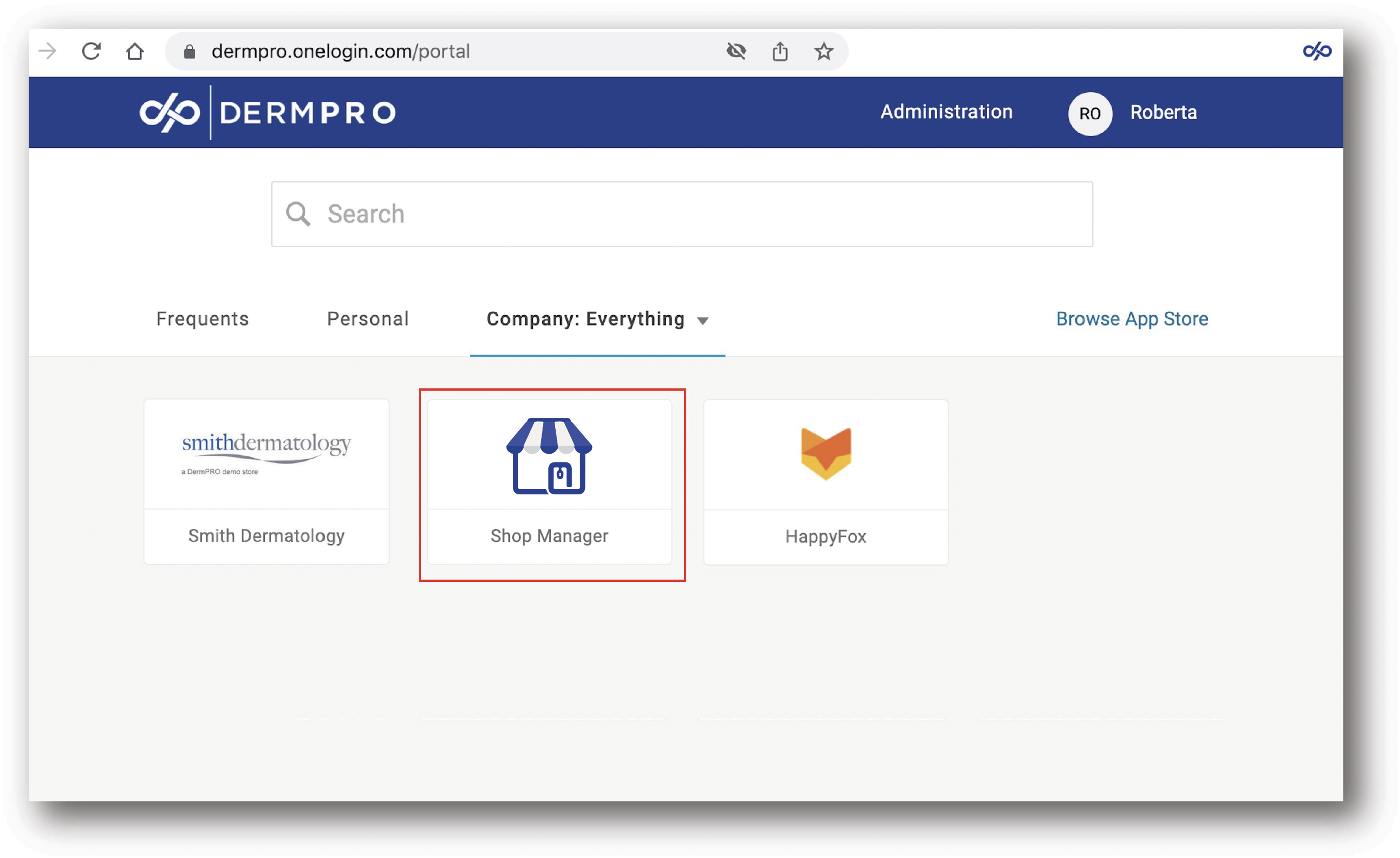
- Log in to Shop Manager by first signing in to the DermPRO OneLogin Dashboard and clicking the Shop Manager tile.
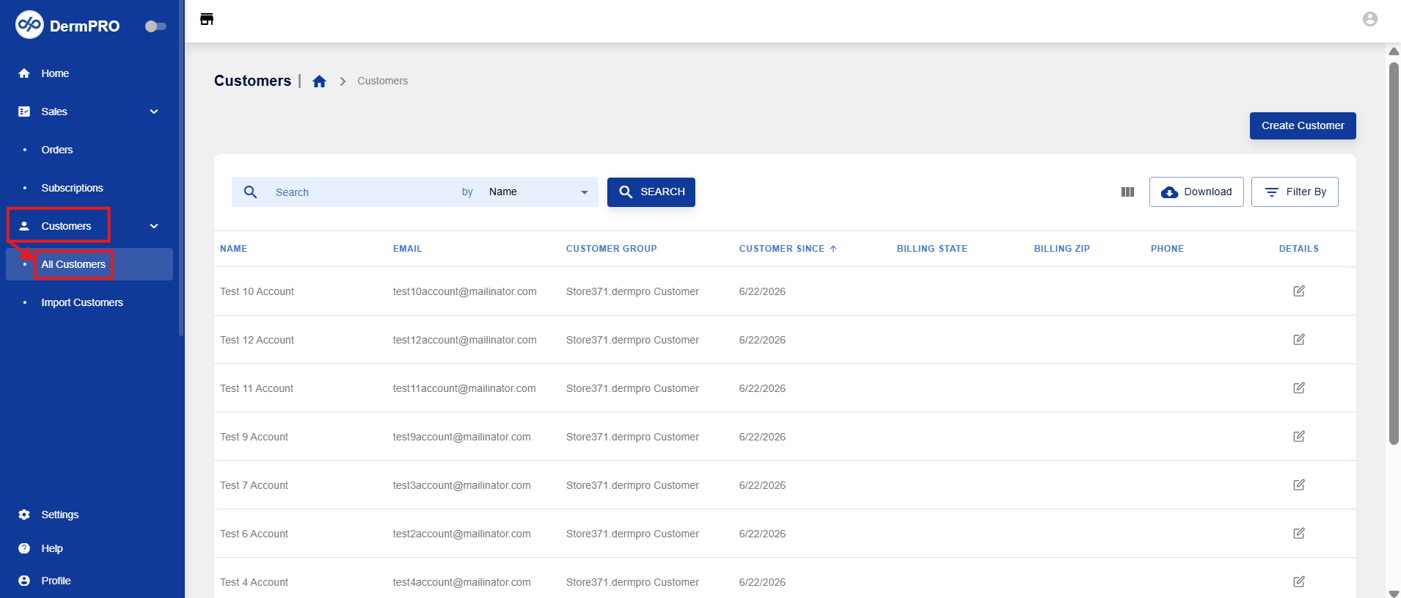
- From the left-hand navigation menu, click Customers to expand the available options, then select All Customers.
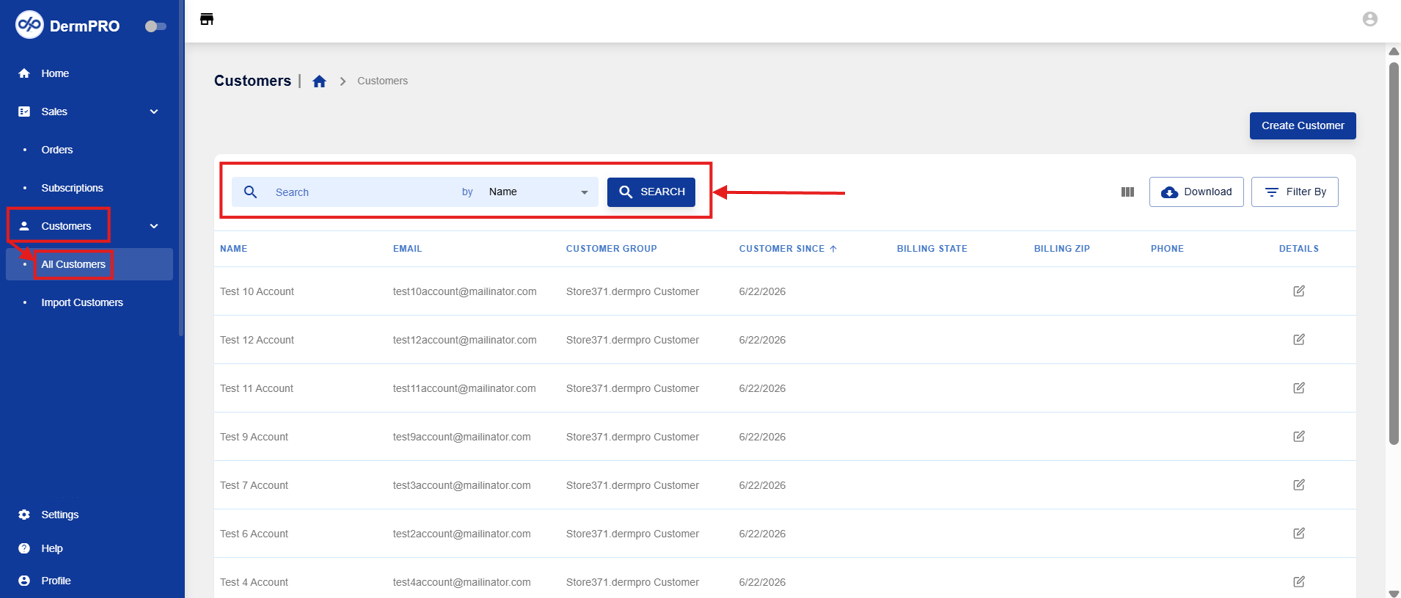
- Use the Search bar to locate the customer by Name, Email, Billing Address, or Phone.
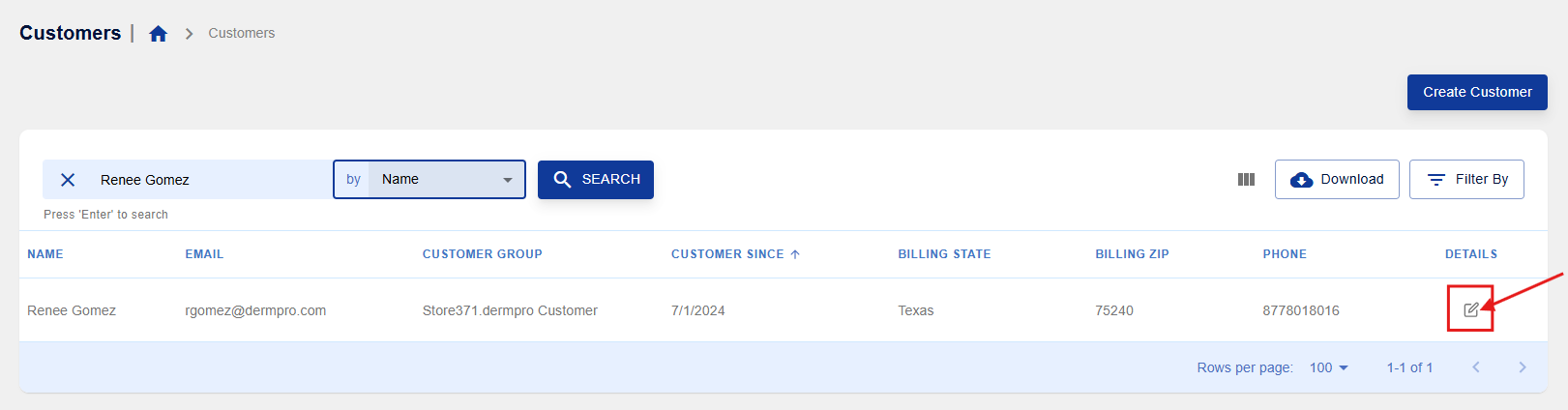
- Once you've located the customer, click the pencil icon to open their customer profile.
- Click Edit Account Information in the upper-right corner of the page.
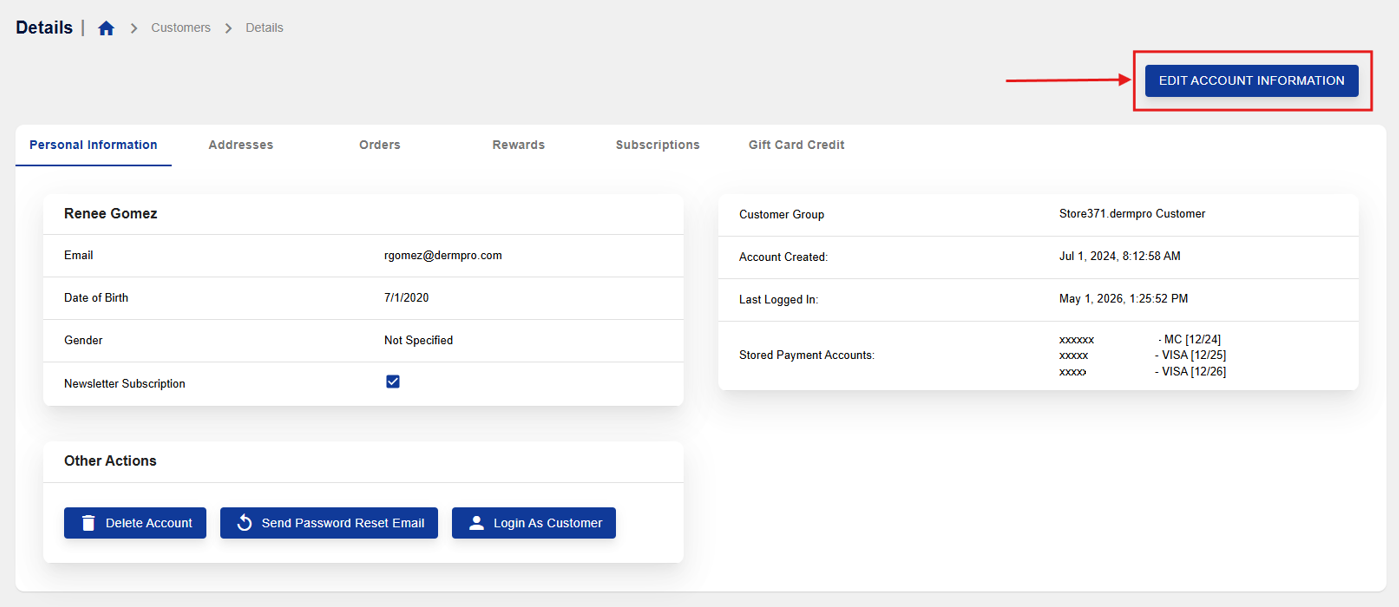
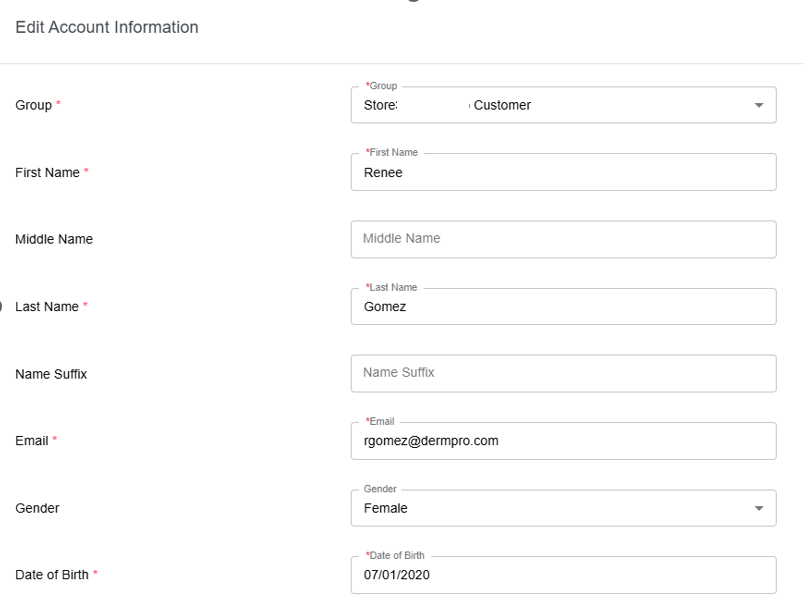
- Update the account information as needed, including:
- Group
- First Name
- Middle Name
- Last Name
- Name Suffix
- Gender
- Date of Birth
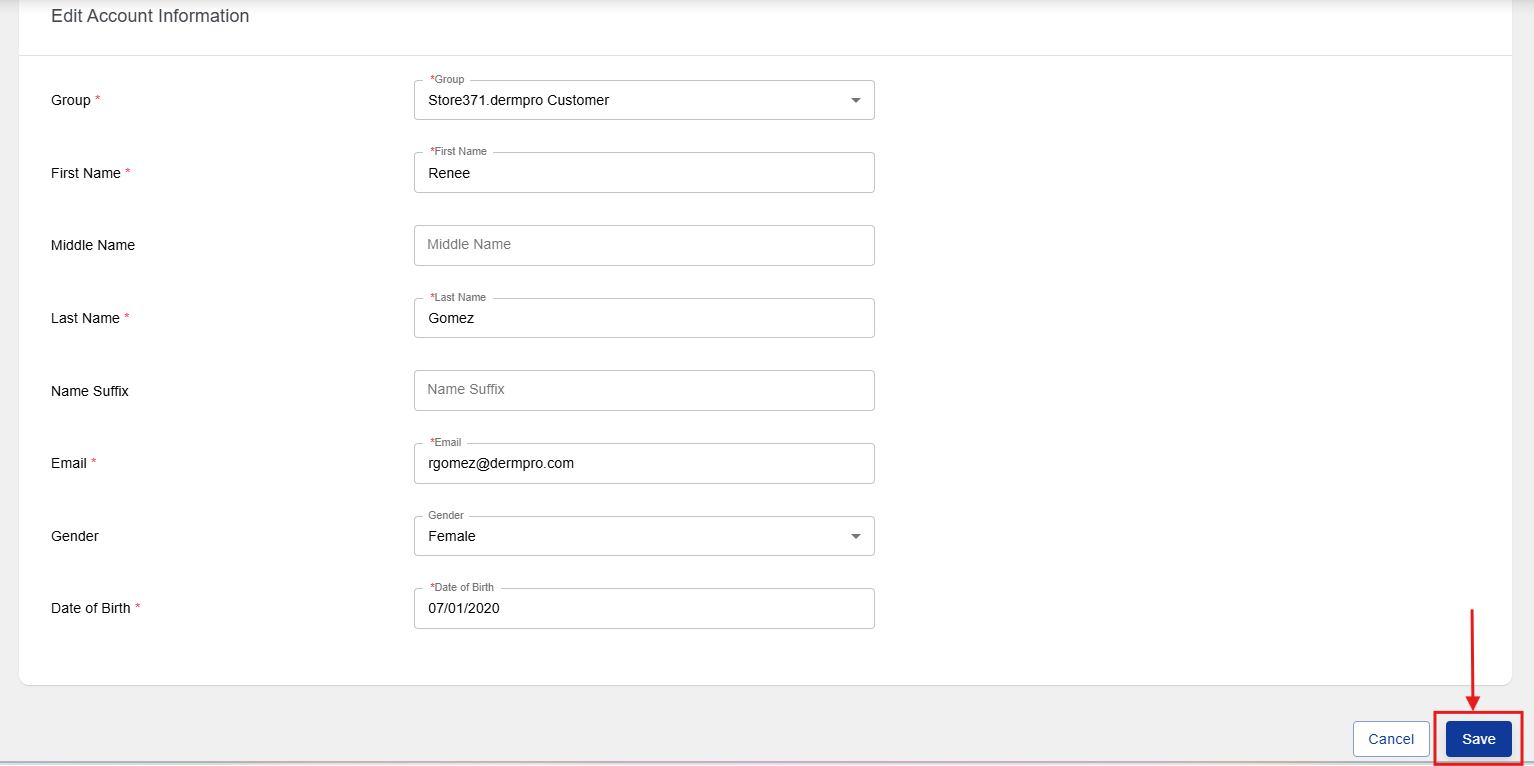
- After making the necessary changes, click Save to apply your updates.
Notes
- Review all changes carefully before saving, as updates will be applied immediately to the customer's account.
- Ensure the customer's information is accurate to help maintain correct account records.
-----END-----

