


Unsubscribe a Customer from Store Communications
Last updated: Jul 20, 2026

HOW TO UNSUBSCRIBE A CUSTOMER FROM STORE COMMUNICATIONS
Introduction
This article explains how to unsubscribe a customer from receiving store communications by updating their newsletter subscription preferences.
Steps
- Log in to Shop Manager by first signing in to the DermPRO OneLogin Dashboard and clicking the Shop Manager tile.

- From the left-hand navigation menu, click Customers to expand the available options, then select All Customers.
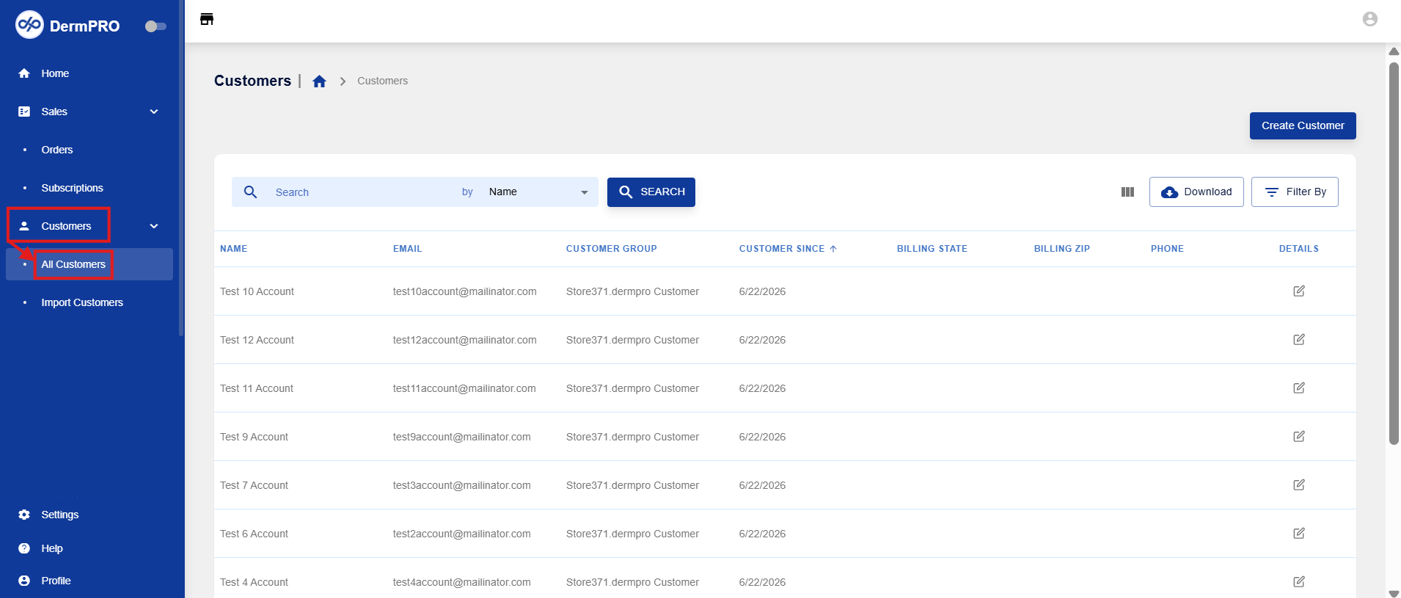
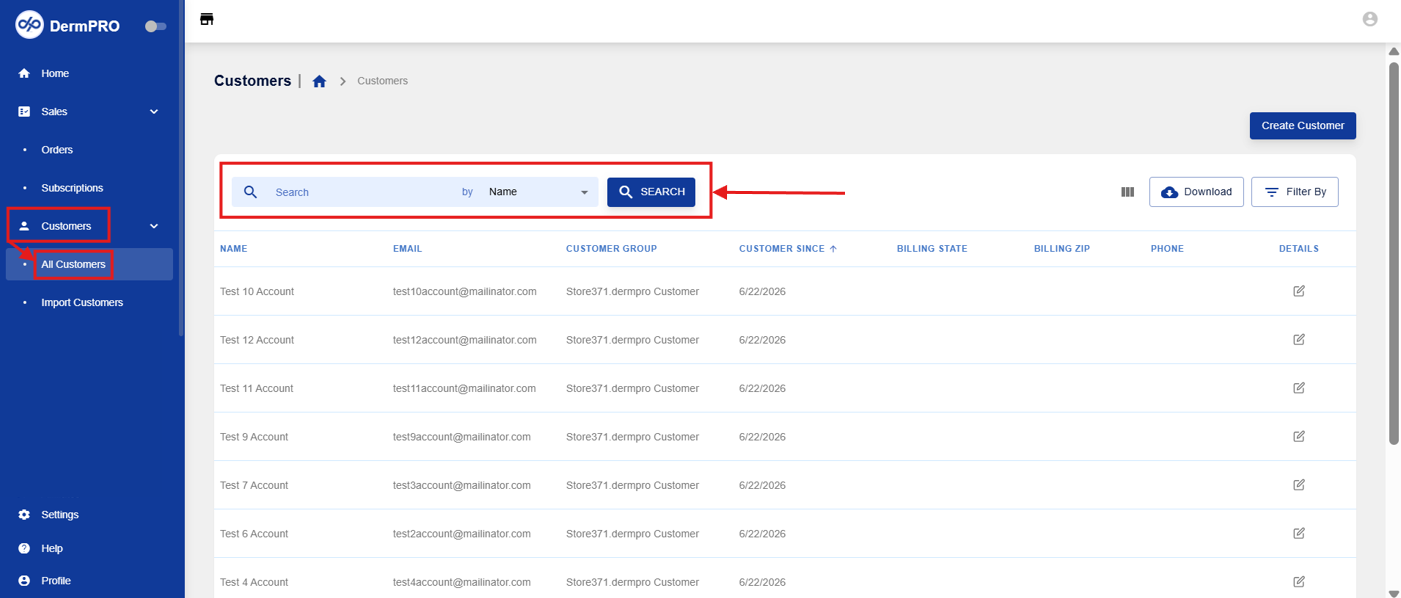
- Use the Search bar to locate the customer by Name, Email, Billing Address, or Phone.
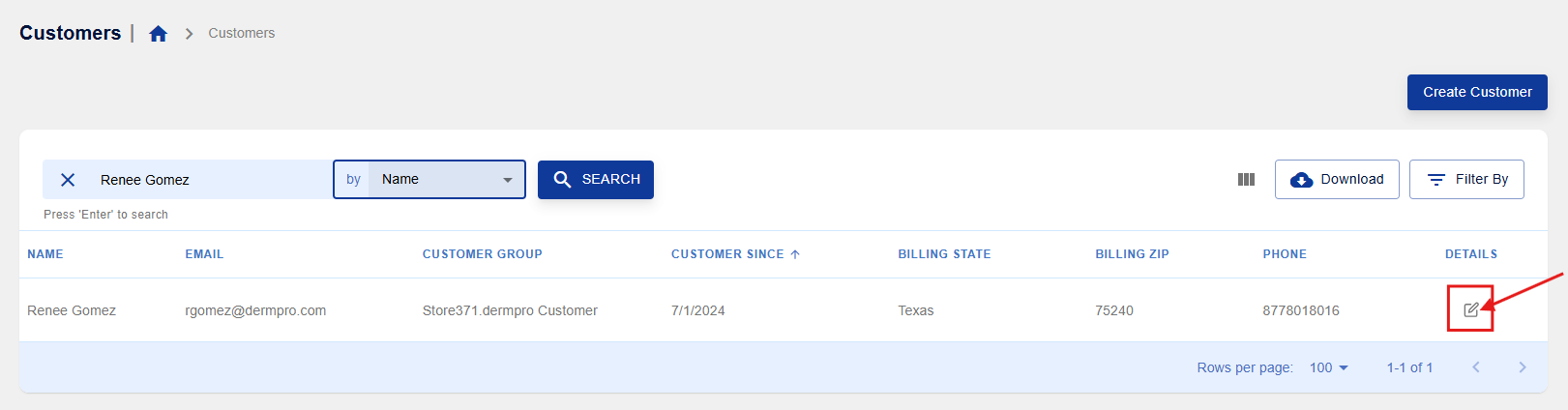
- Once you've located the customer, click the pencil icon to open their customer profile.
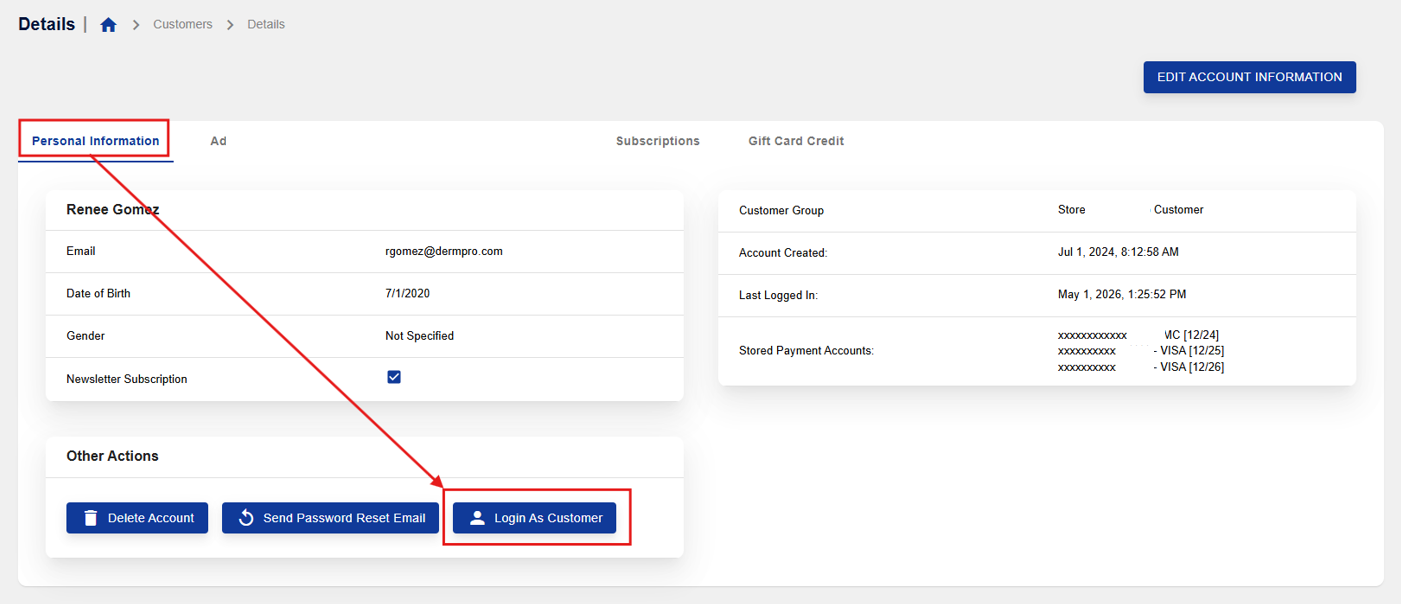
- On the Personal Information tab, locate the Other Actions section. Click Login As Customer. You will be redirected to the customer's storefront account.
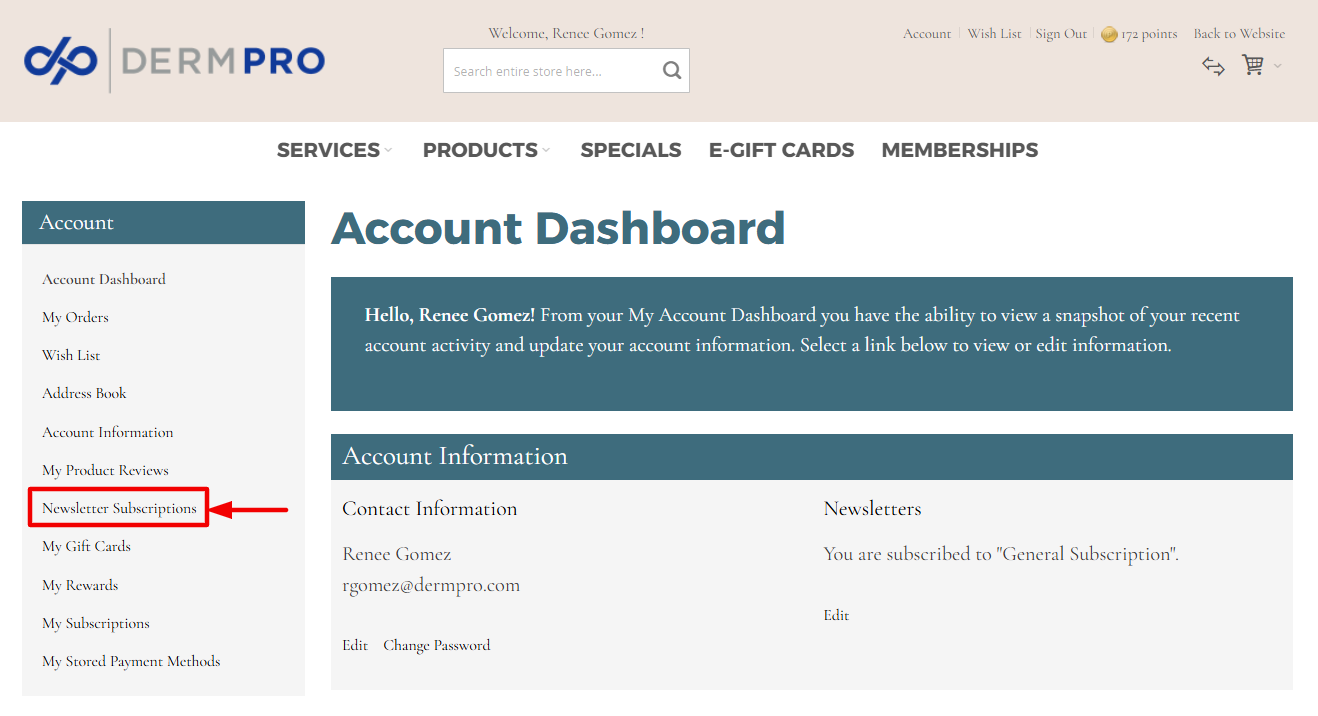
- In the customer's storefront account, click Newsletter Subscription under the Account section in the left-hand navigation menu.
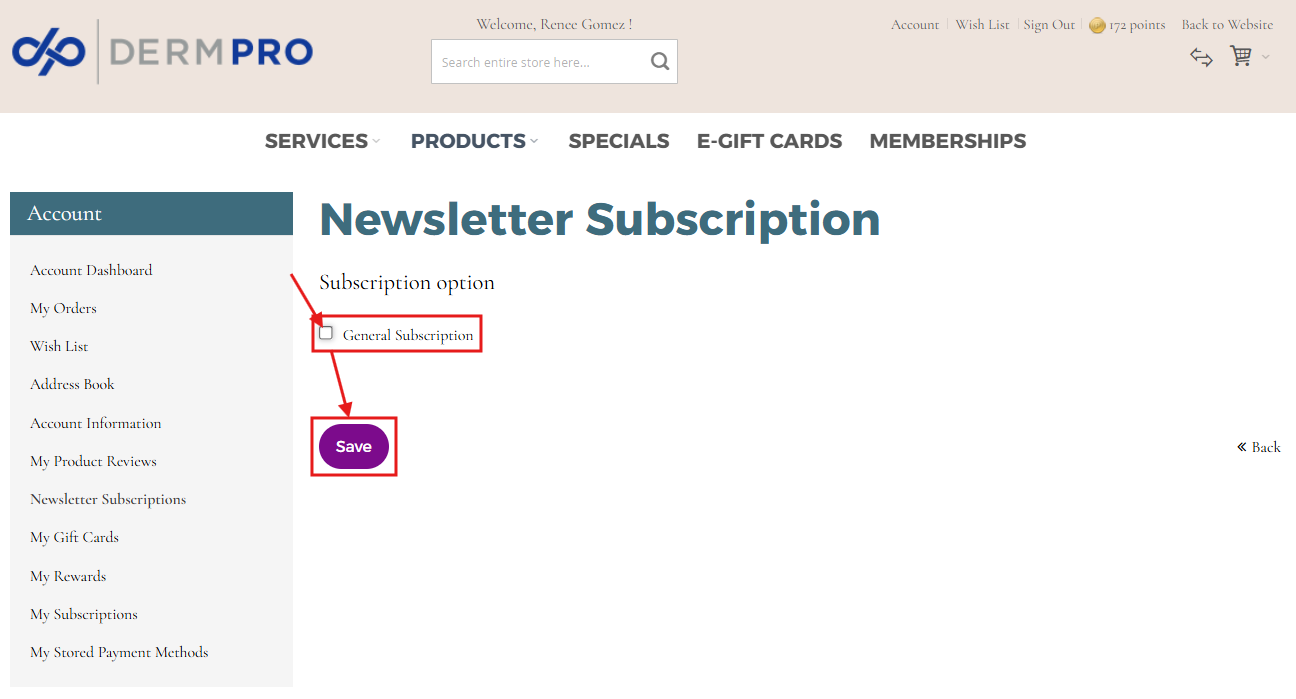
- On the Newsletter Subscription page, uncheck the General Subscription checkbox, then click Save.
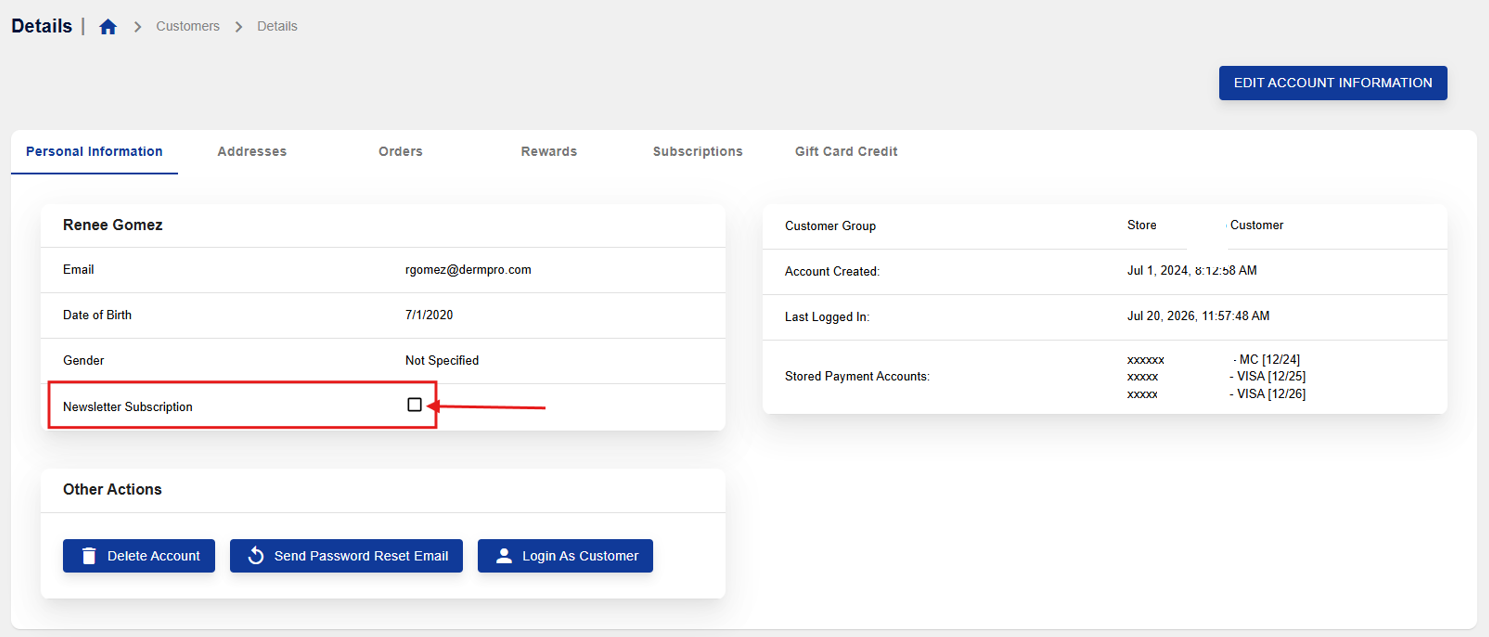
- To verify that the customer has been unsubscribed, return to the customer's Personal Information page in Shop Manager and confirm that the Newsletter Subscription checkbox is also unchecked.
Notes
- Unsubscribing a customer from the General Subscription list will prevent them from receiving store communications associated with that subscription.
- If the customer wishes to receive store communications again in the future, simply reselect the General Subscription checkbox and save the changes.
-----END-----

