


Approving Reviews On Your Store
Last updated: Jul 20, 2026

HOW TO APPROVE REVIEWS ON YOUR STORE
Introduction
This article explains how to review and approve customer reviews in your store's back-end.
Steps
- Log in to your Store Back-End by signing in to the DermPRO OneLogin Dashboard and clicking the tile that displays your store's name and logo.
- Note: Most store management tasks are performed through the Shop Manager tile. However, customer reviews are managed through the Store Back-End.
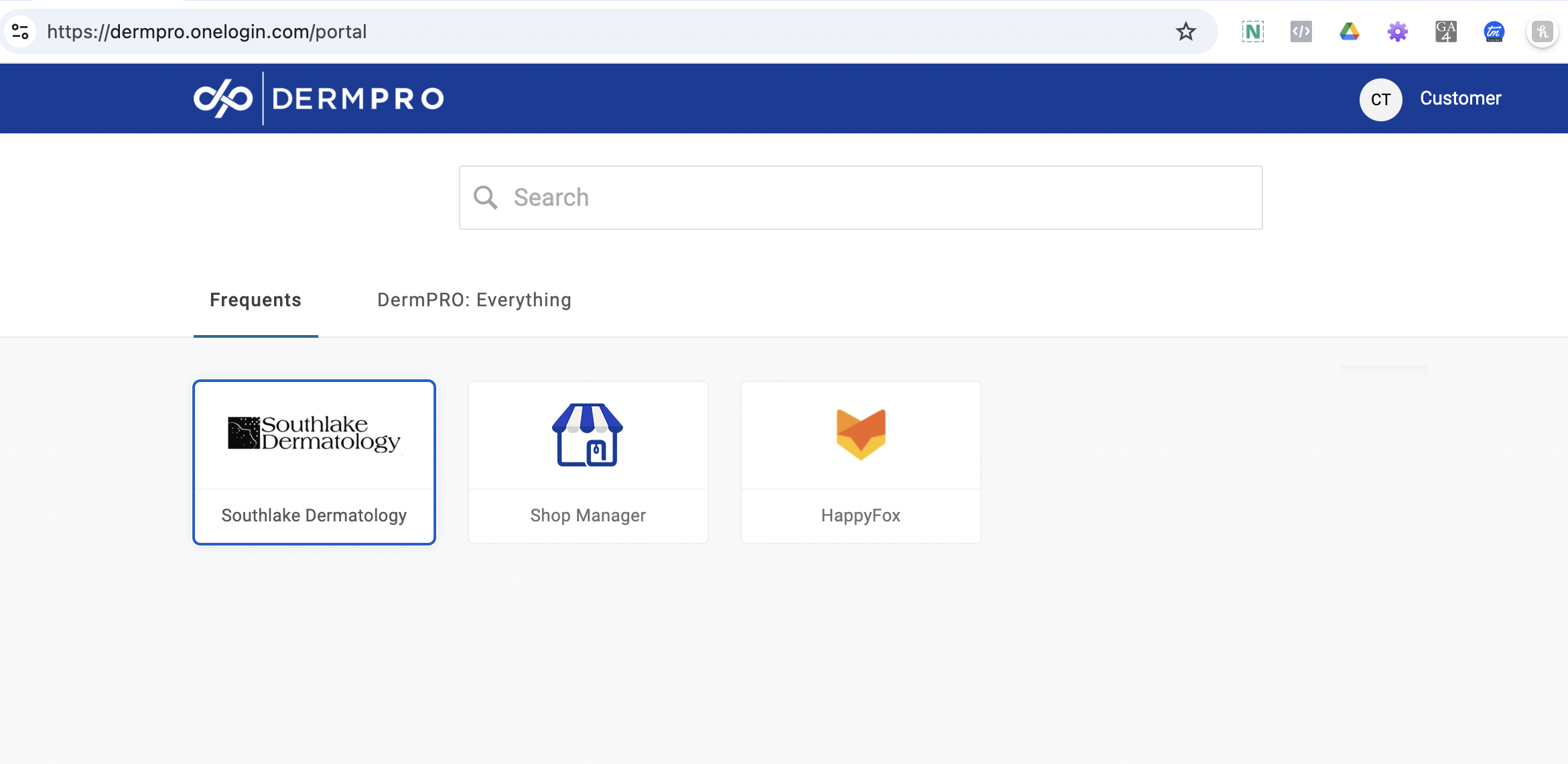
- Note: Most store management tasks are performed through the Shop Manager tile. However, customer reviews are managed through the Store Back-End.
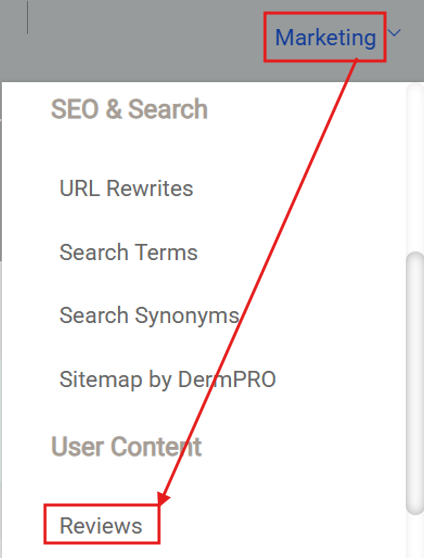
- From the Store Back-End, click Marketing from the main menu. Under the User Content section, select Reviews.
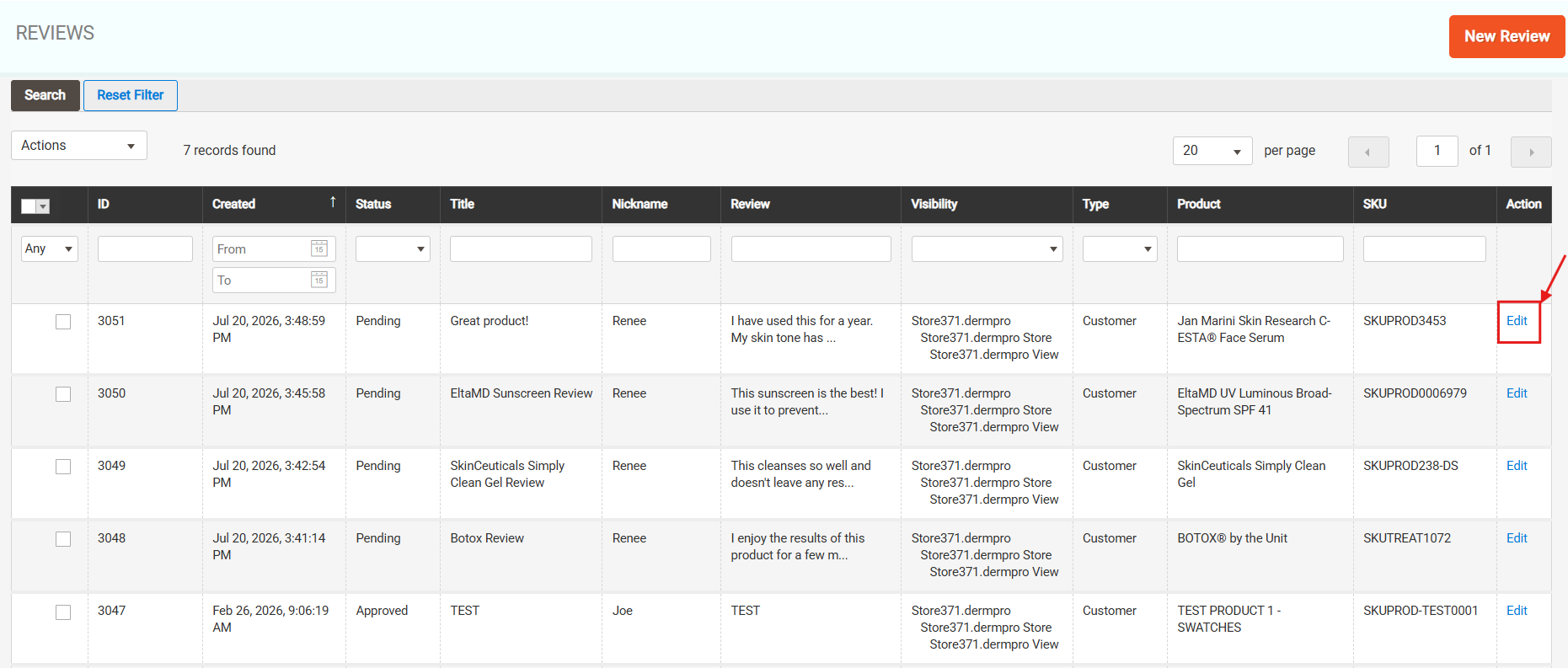
- On the Reviews page, locate the review with a Pending status that you would like to approve. Under the Action column, click Edit to open the review details.
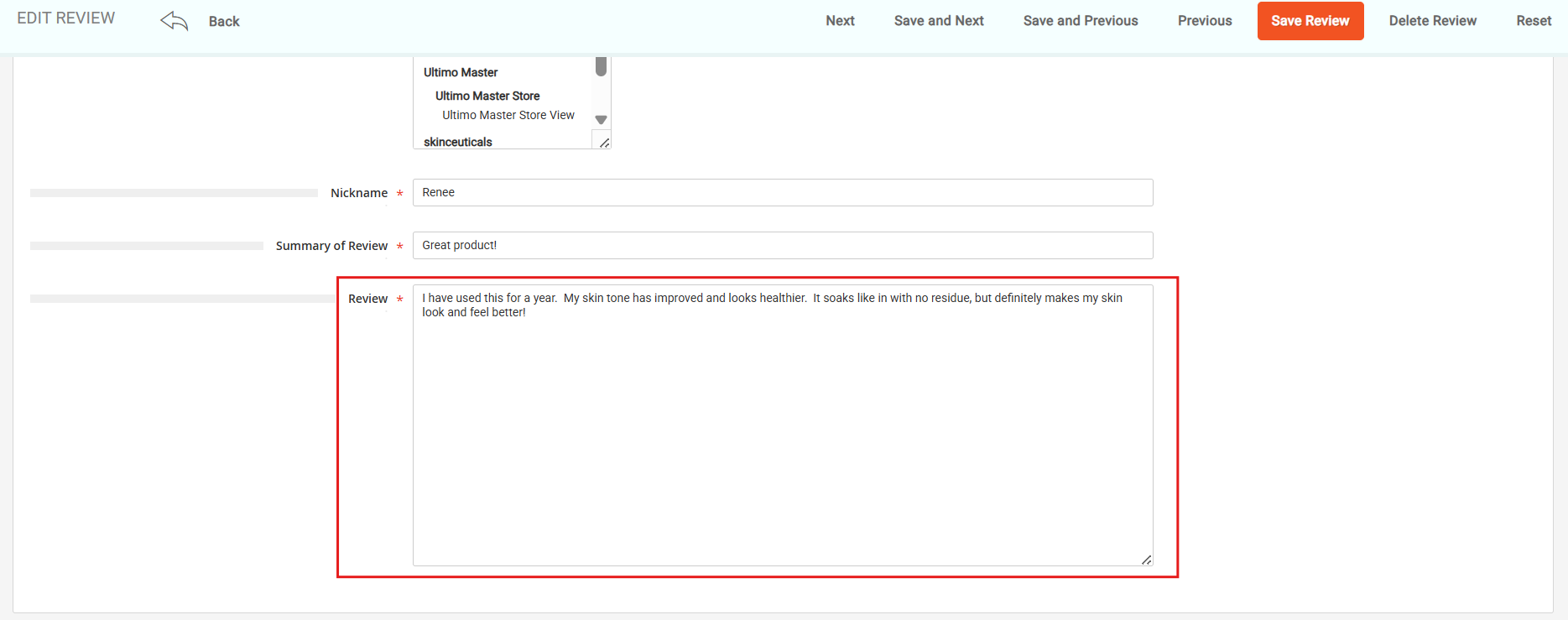
- On the review details page, scroll down to view the customer's full review for the product or treatment.
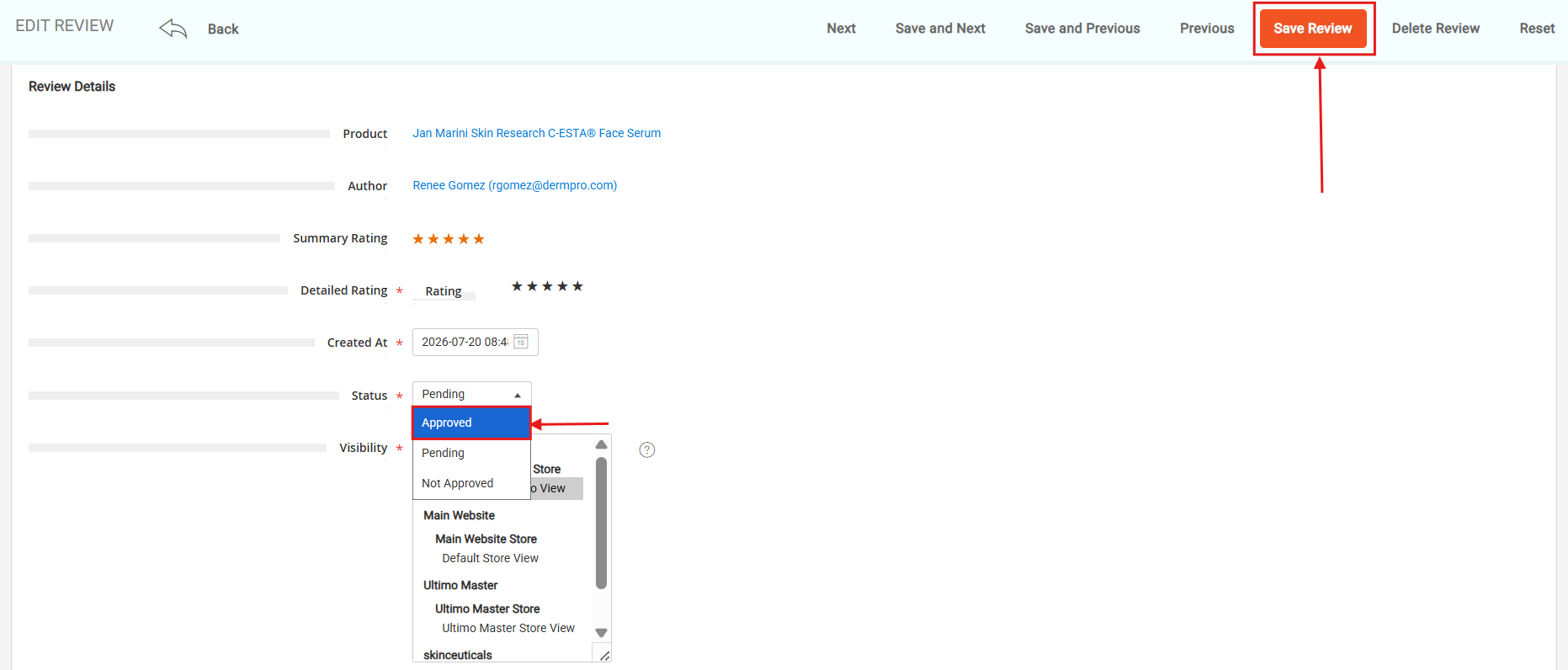
- To publish the review on the product page, change the Status to Approved, then click Save Review.
Note: If you do not want the review to be published, you can select Not Approved or delete the review by clicking Delete Review.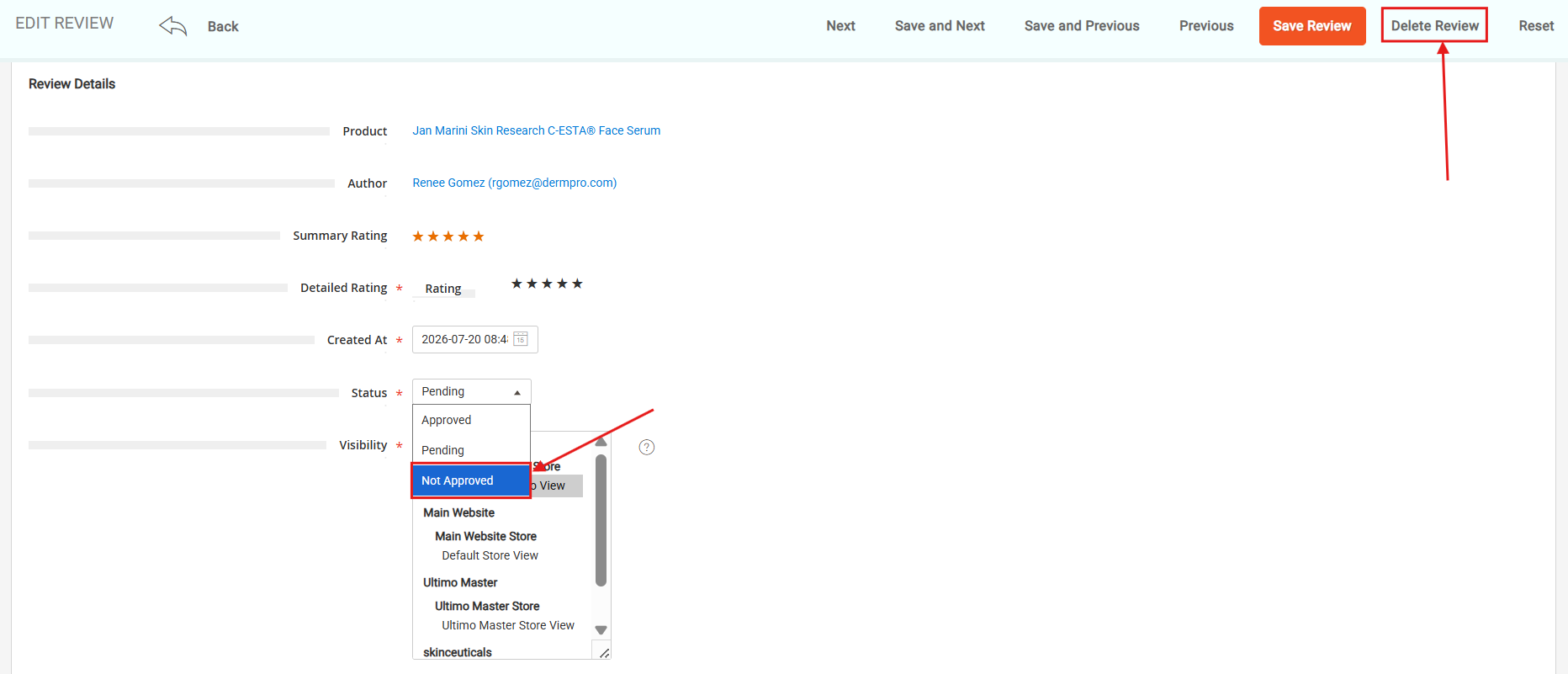
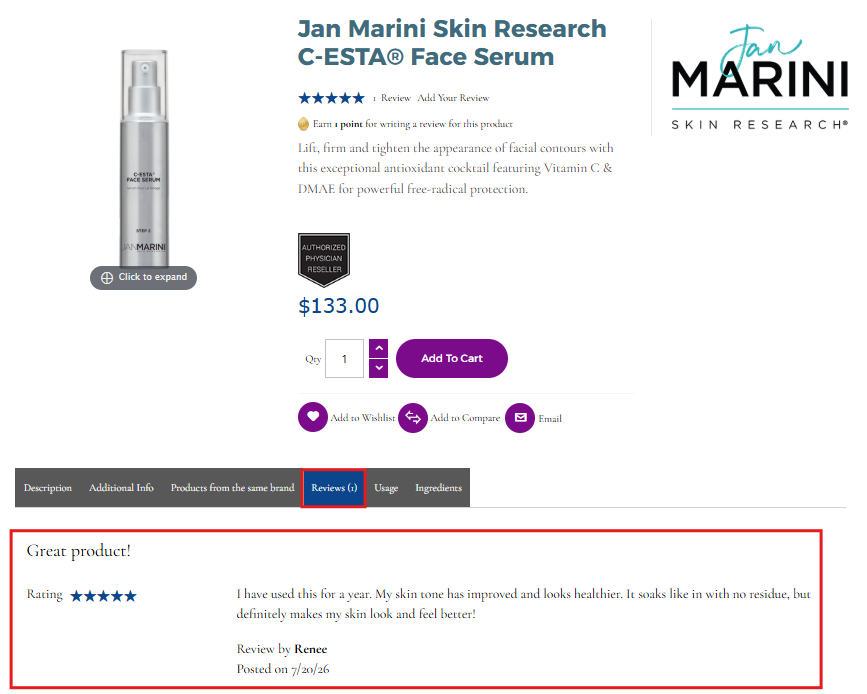
- After saving the review, verify that it has been published by navigating to the specific product page and checking the Reviews section.
Bulk Approving Reviews
You can also approve multiple pending reviews at once by following these steps:
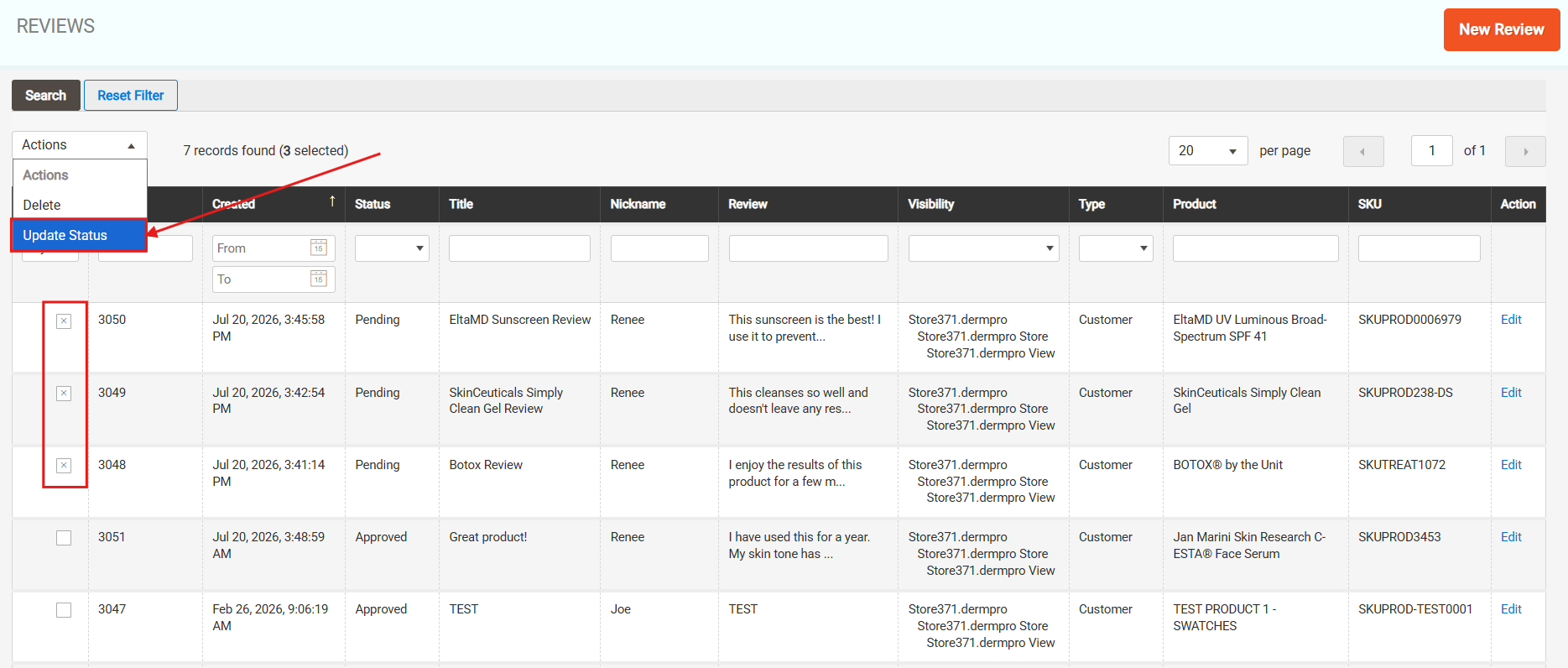
- On the Reviews page, select the pending reviews you would like to approve by checking the checkbox on the left side of each review.
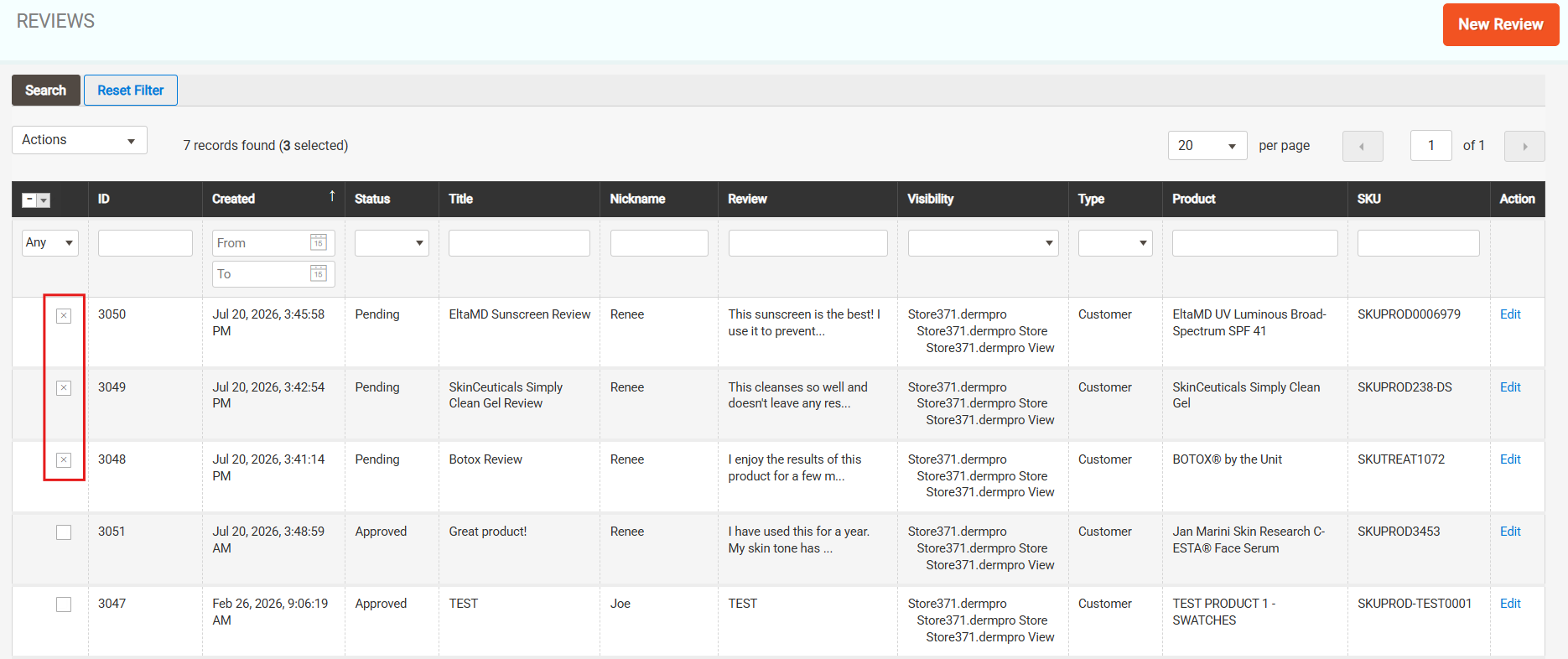
- Once all desired reviews are selected, click Actions in the upper-right corner. Select Update Status.
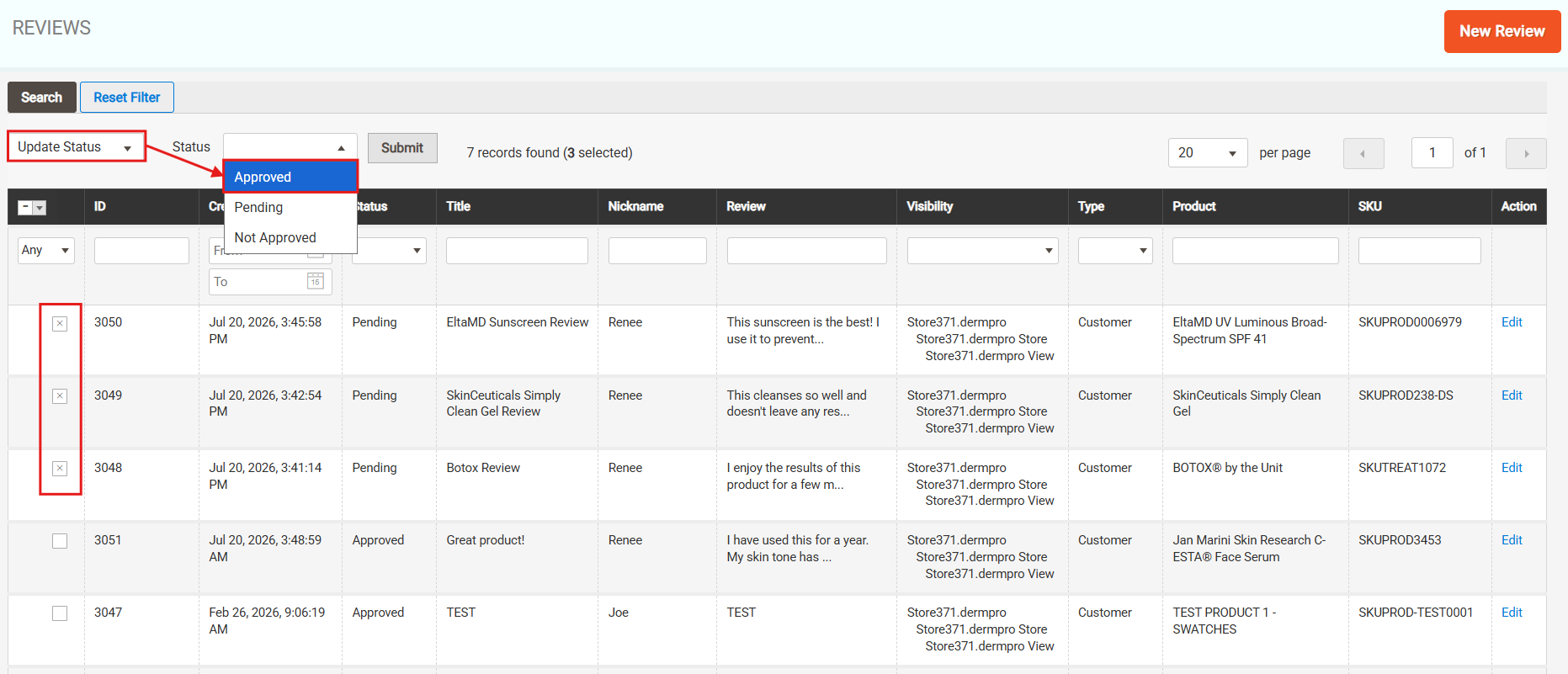
- A Status dropdown menu will appear. Select Approved from the dropdown options.
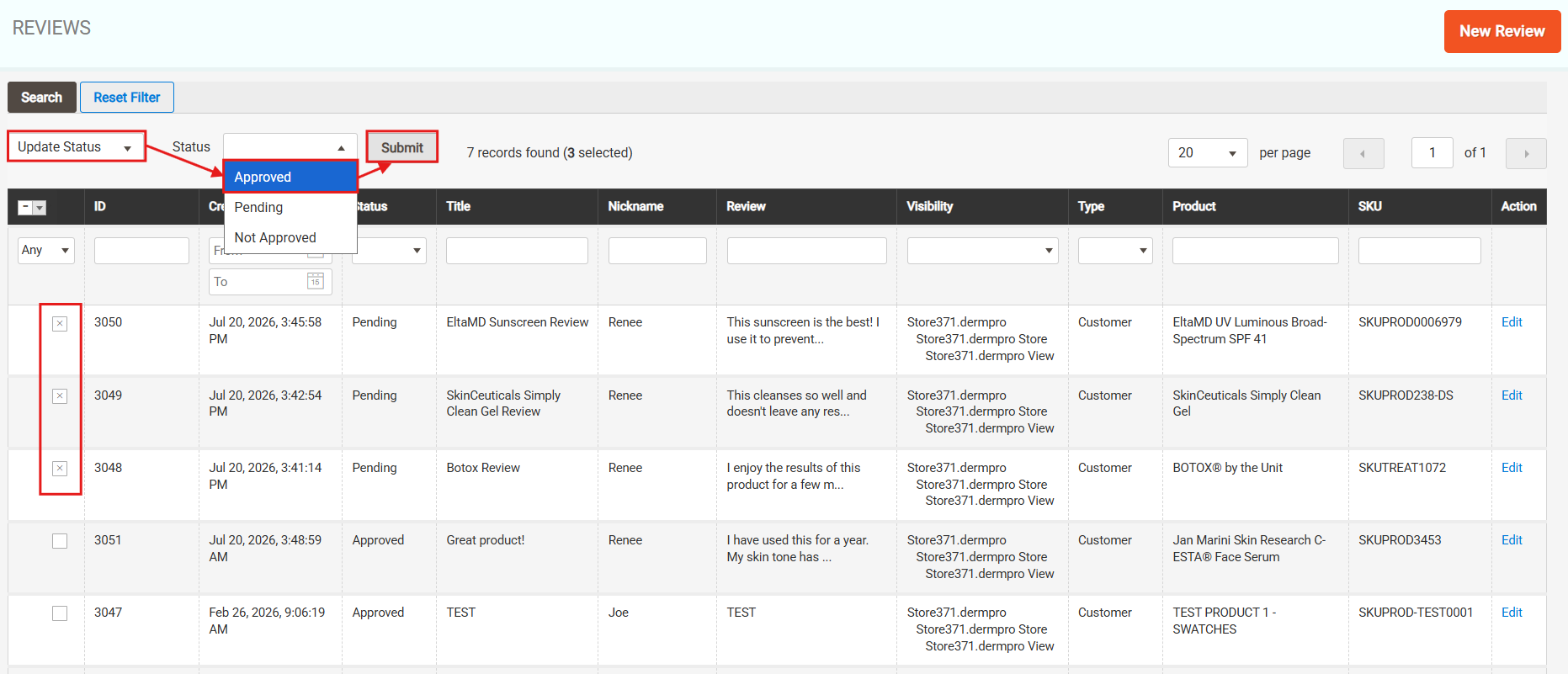
- Click Submit to apply the status update to the selected reviews.
Notes
- Only reviews with an Approved status will appear on the product page.
- Review details should be checked before approval to ensure the content is appropriate for display.
-----END-----

