


Support Ticket Instructions
Last updated: Oct 14, 2026

HOW TO SUBMIT A SUPPORT TICKET
Before Submitting a Support Ticket
Before creating a ticket, we recommend checking the available Help Center Articles for walkthroughs, best practices, and step-by-step guides that may help answer your question or assist you with completing a task.
To access the Help Center and search for an article:
- Go to https://dermpro.happyfox.com/home/.
- Enter a keyword related to your question or concern in the search bar.
- Alternatively, click Article Index to view all available sections organized by category.
- Browse the articles under the category that best matches your concern, inquiry, or request.
If you are unable to find an article that addresses your question or need additional assistance, you can submit a support ticket.
Creating a New Support Ticket
- Log in to the DermPRO OneLogin Dashboard: https://dermpro.onelogin.com/portal/
Note: Always access DermPRO Support (HappyFox) through the DermPRO OneLogin Dashboard. Attempting to access it by logging in directly may result in an error.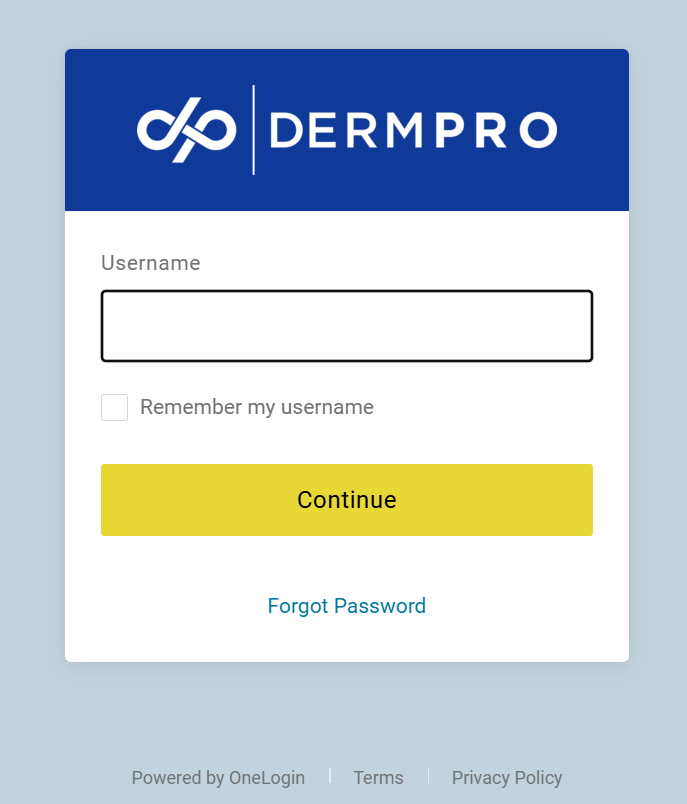
-
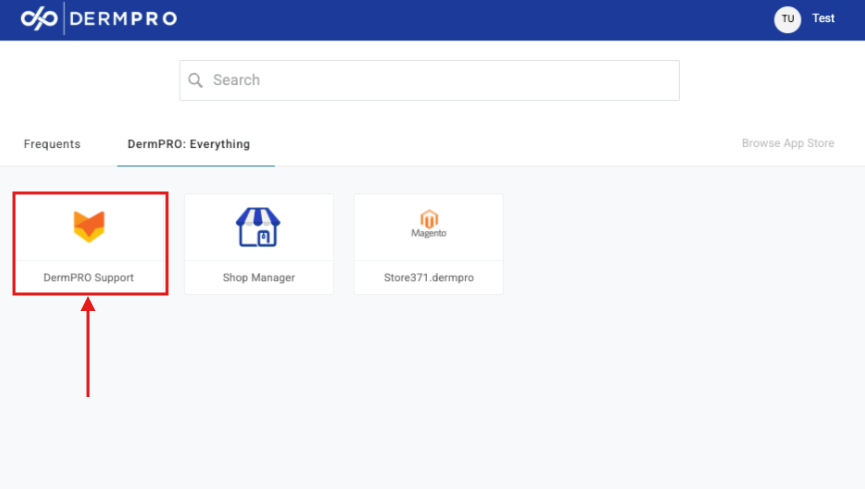
From the OneLogin Dashboard, click the DermPRO Support (previously HappyFox) tile to access the support portal.
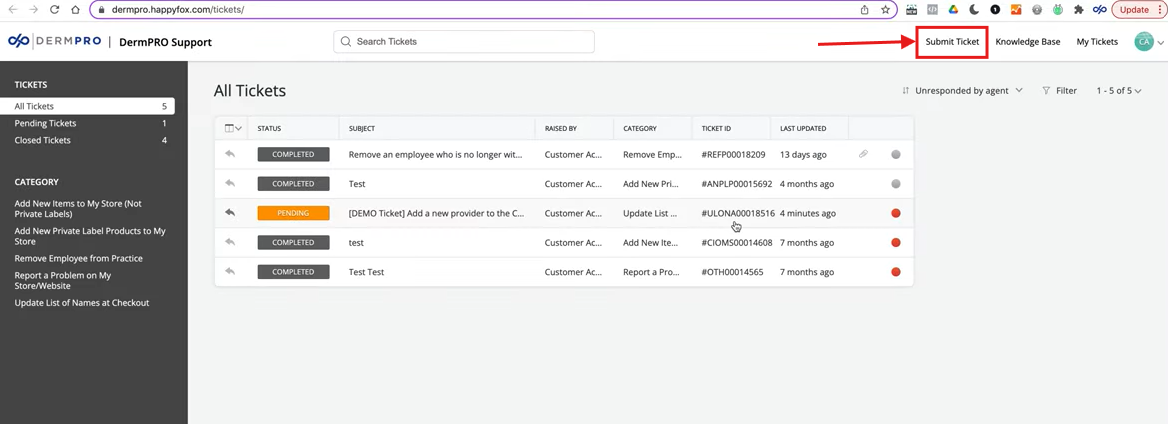
- In the upper-right corner of the page, click Submit Ticket to open the Create a New Ticket form.
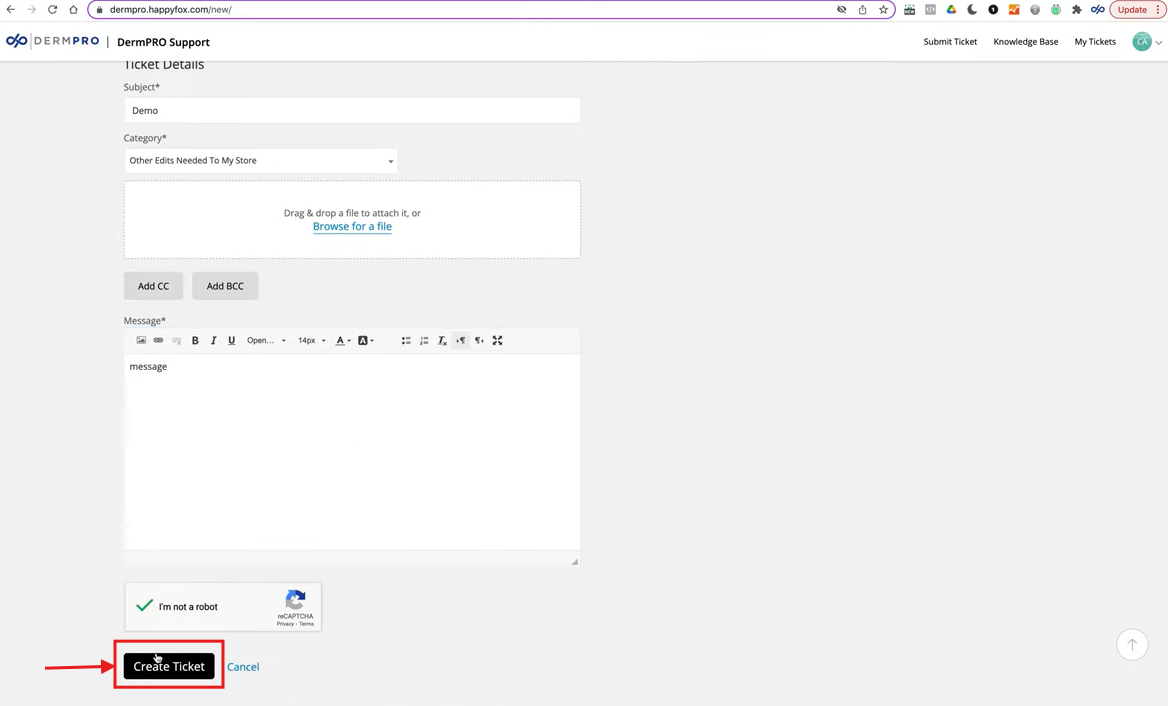
- Enter a Subject for your ticket.
Tip: Use a clear and specific subject so your request can be identified more easily.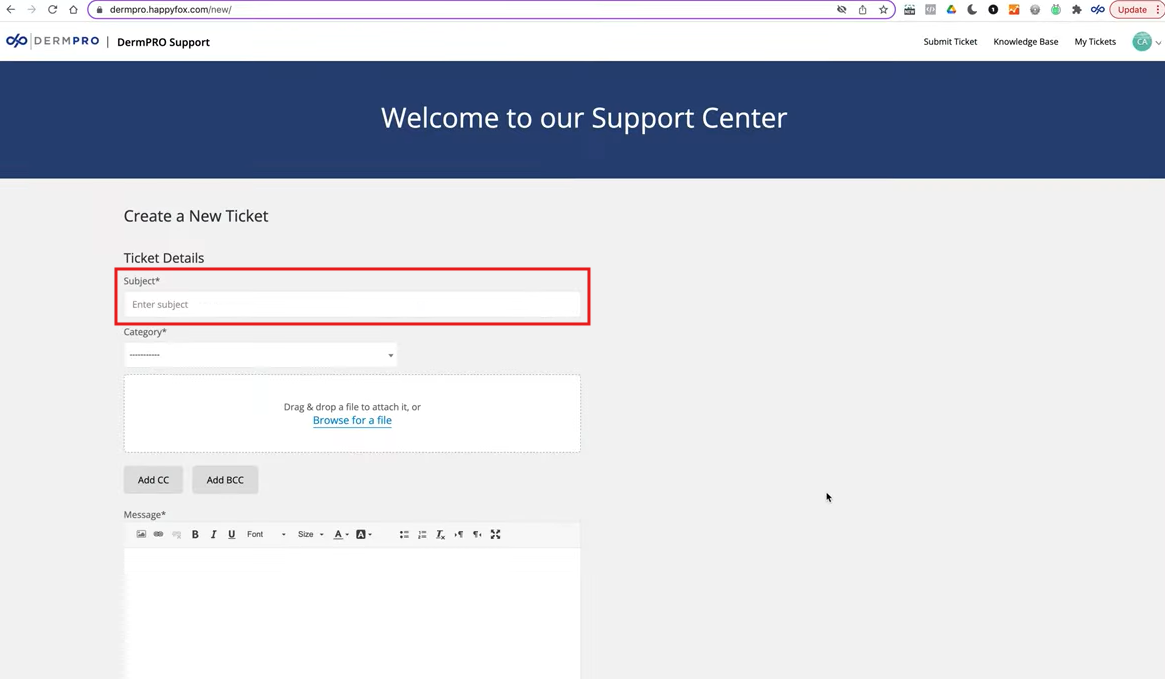
- Select the Category that best matches your question, request, or issue.
Can't find the right category? Select General Inquiries & How-To Questions and provide the details of your request in the Message field.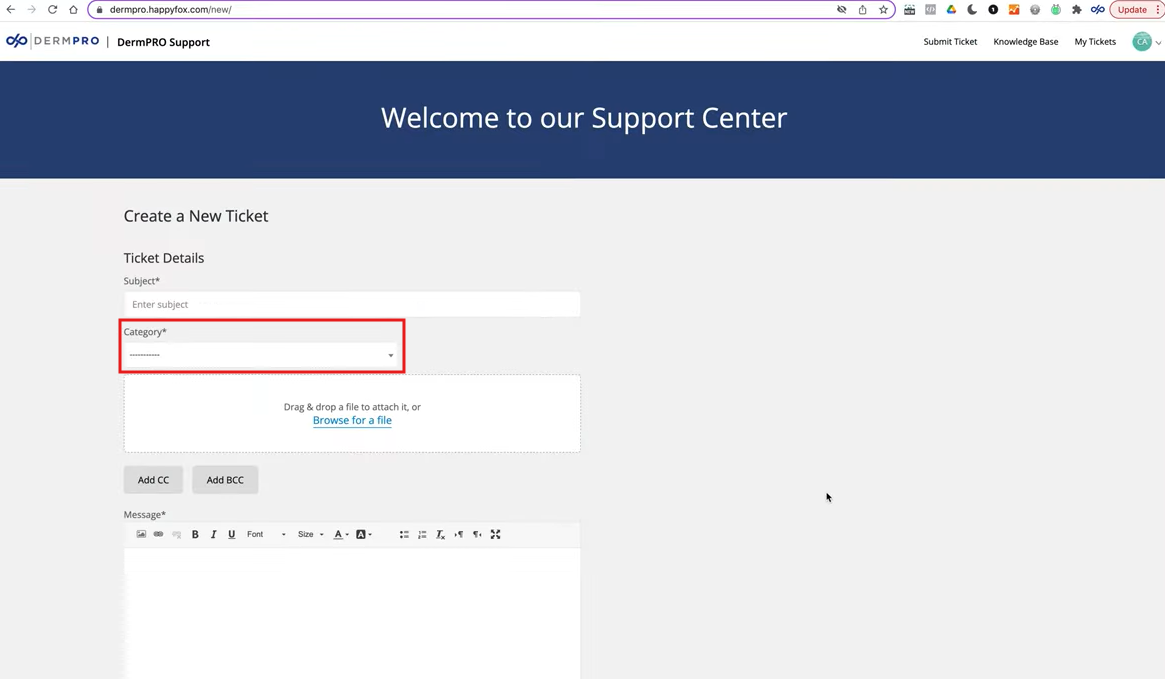
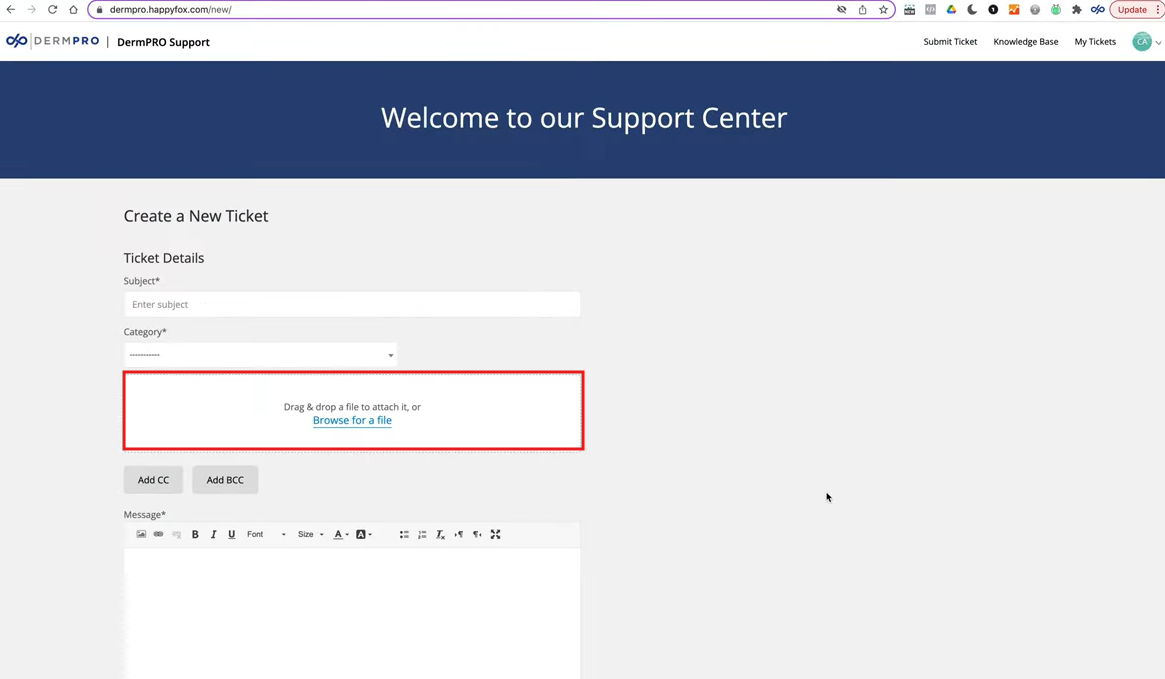
- Attach any supporting files, such as screenshots or documents, if they will help explain your request.
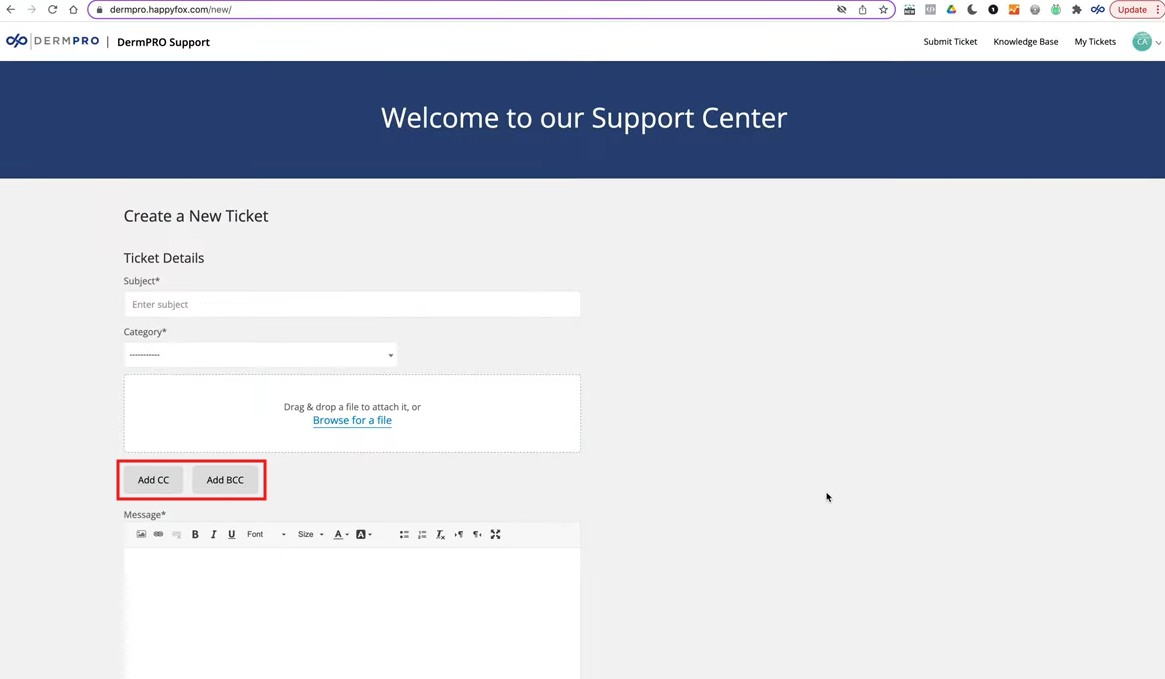
- If you'd like to keep others informed about the request, enter their email address(es) in the CC field.
- Enter your message with details about your question, request, or issue.
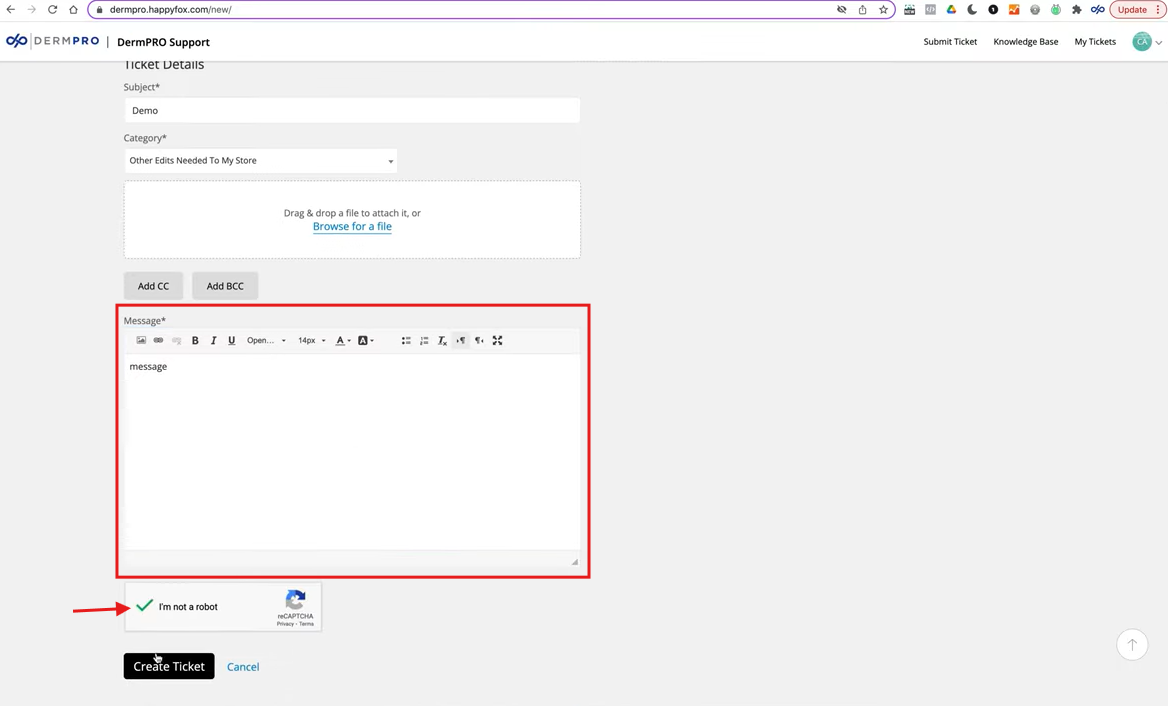
- Click Create Ticket to submit your request.
Viewing Your Submitted Tickets
After submitting a ticket, you can return to your HappyFox Dashboard to view your ticket history and check the status of your submitted requests, including newly created tickets.
-----END-----

